

OriginalCleaned
Notes on garment tags
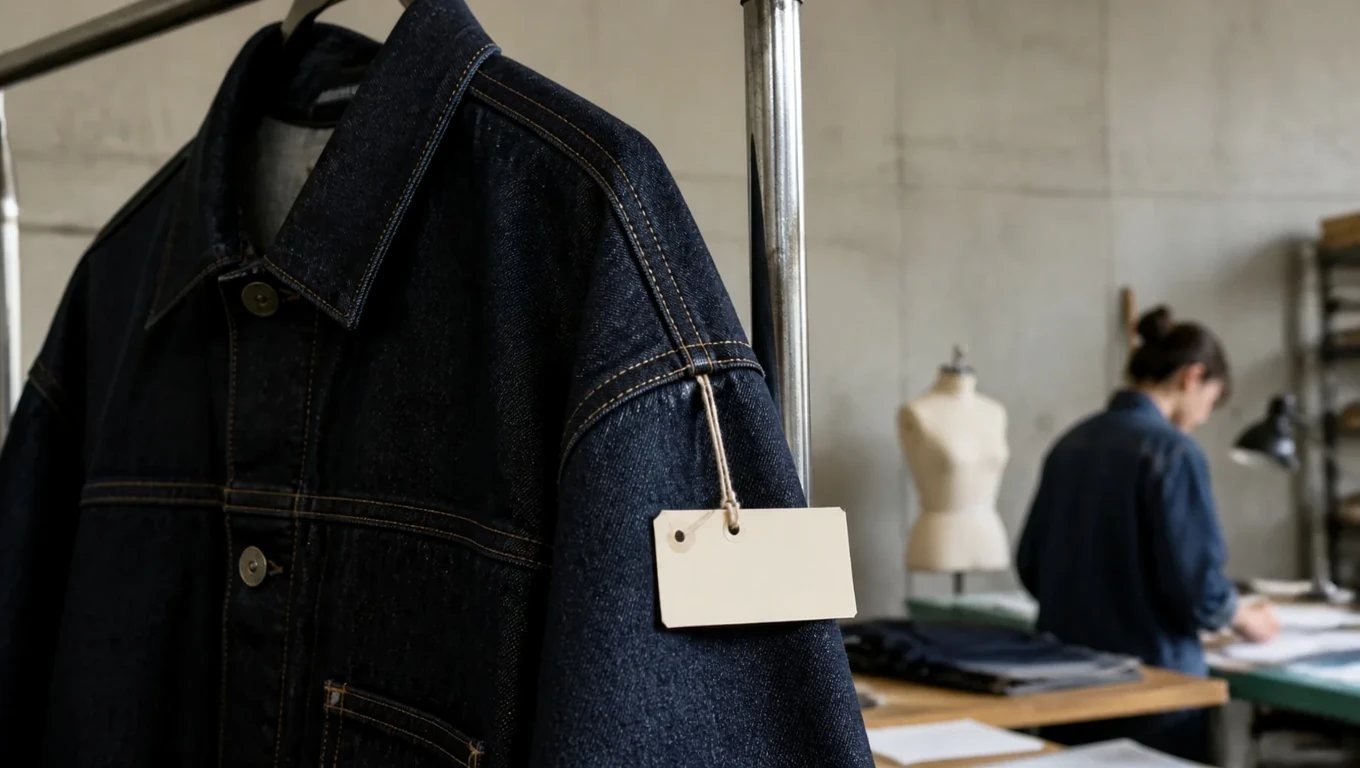
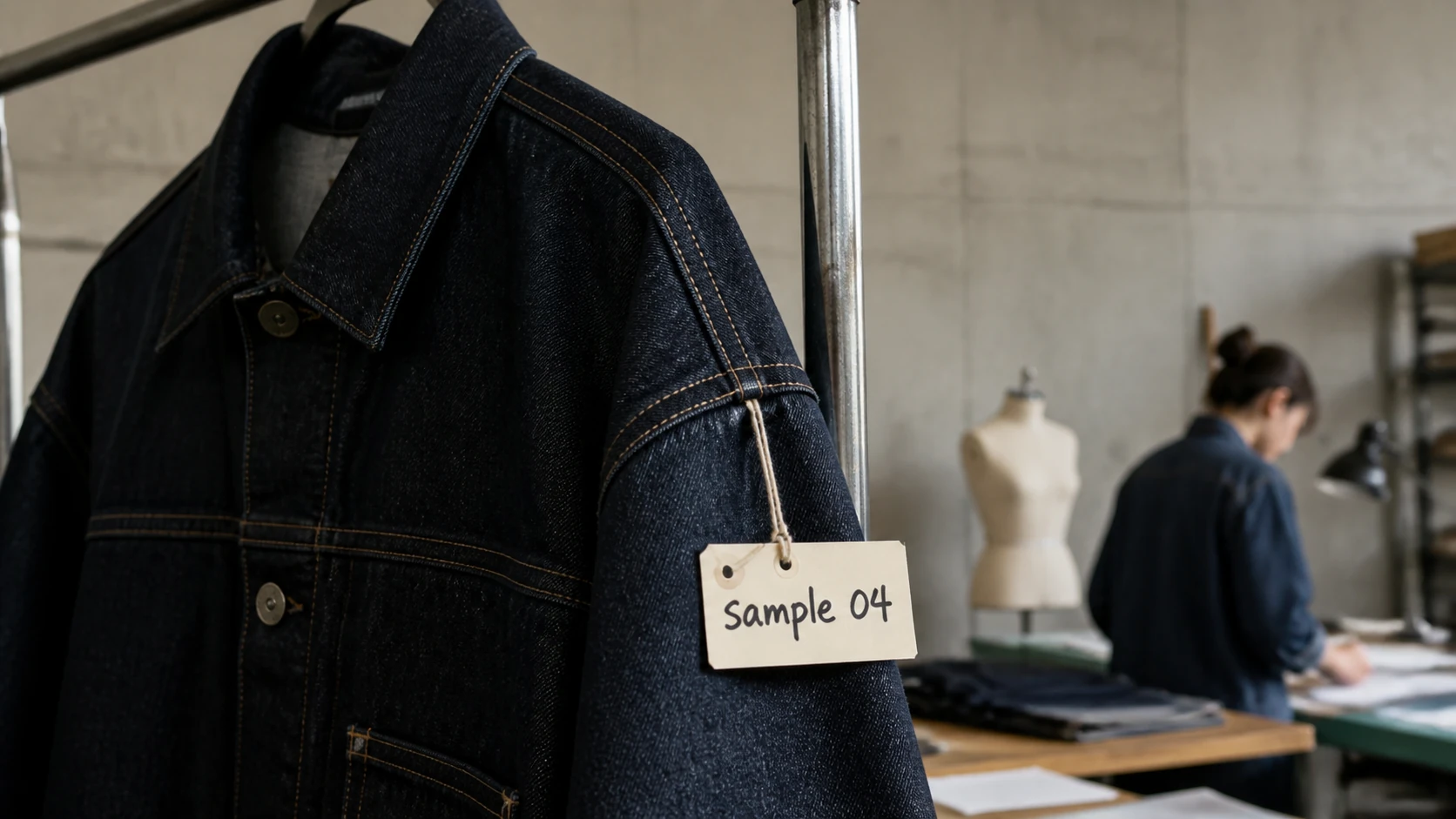
Erase a handwritten sample note while retaining the paper fibers and jacket seam.
Handwriting and label cleanup
Clean handwritten notes, price labels, signatures, and visible writing from an image you own or are authorized to edit. Draw a precise region and let the AI rebuild only the selected area.
See the cleanup first
Drag the slider to compare the original and cleaned image.


JPG, PNG or WebP · up to 10 MB
Upload an image, mark the text, and rebuild only the area you select.
The closer writing sits to a person, garment, product edge, or patterned surface, the more important a small selection and a careful review become.
Erase a handwritten sample note while retaining the paper fibers and jacket seam.
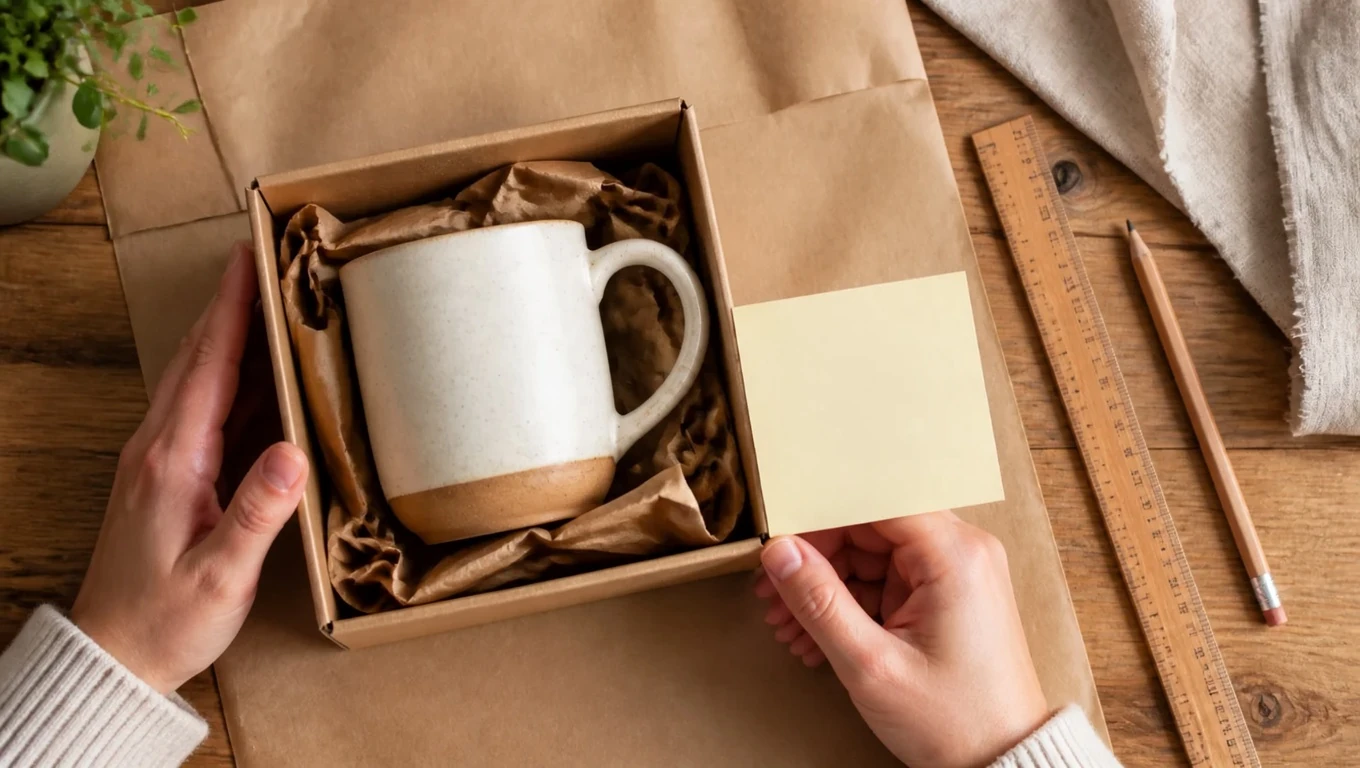
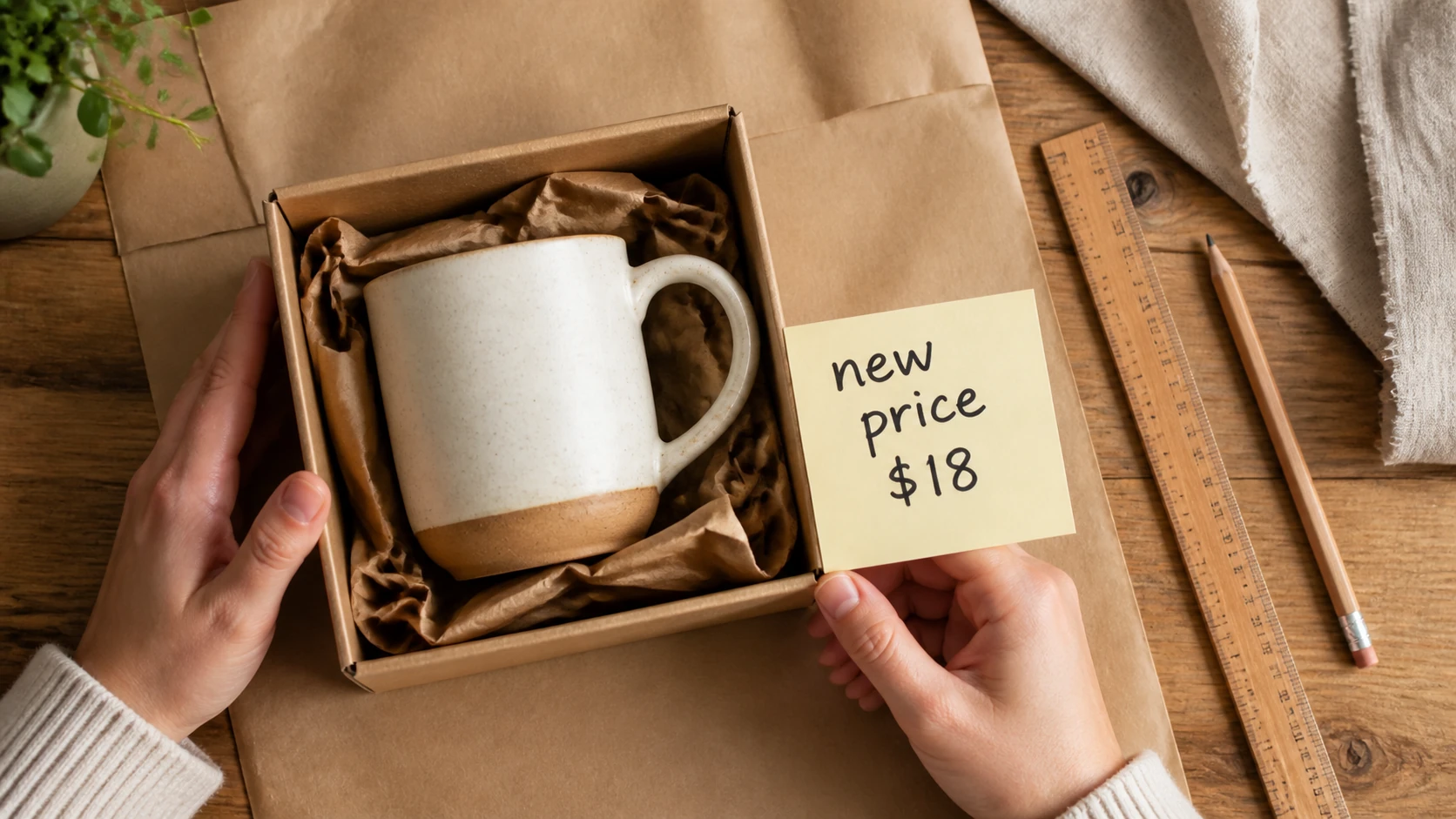
Clear a temporary price note while preserving the package, table grain, and hands.
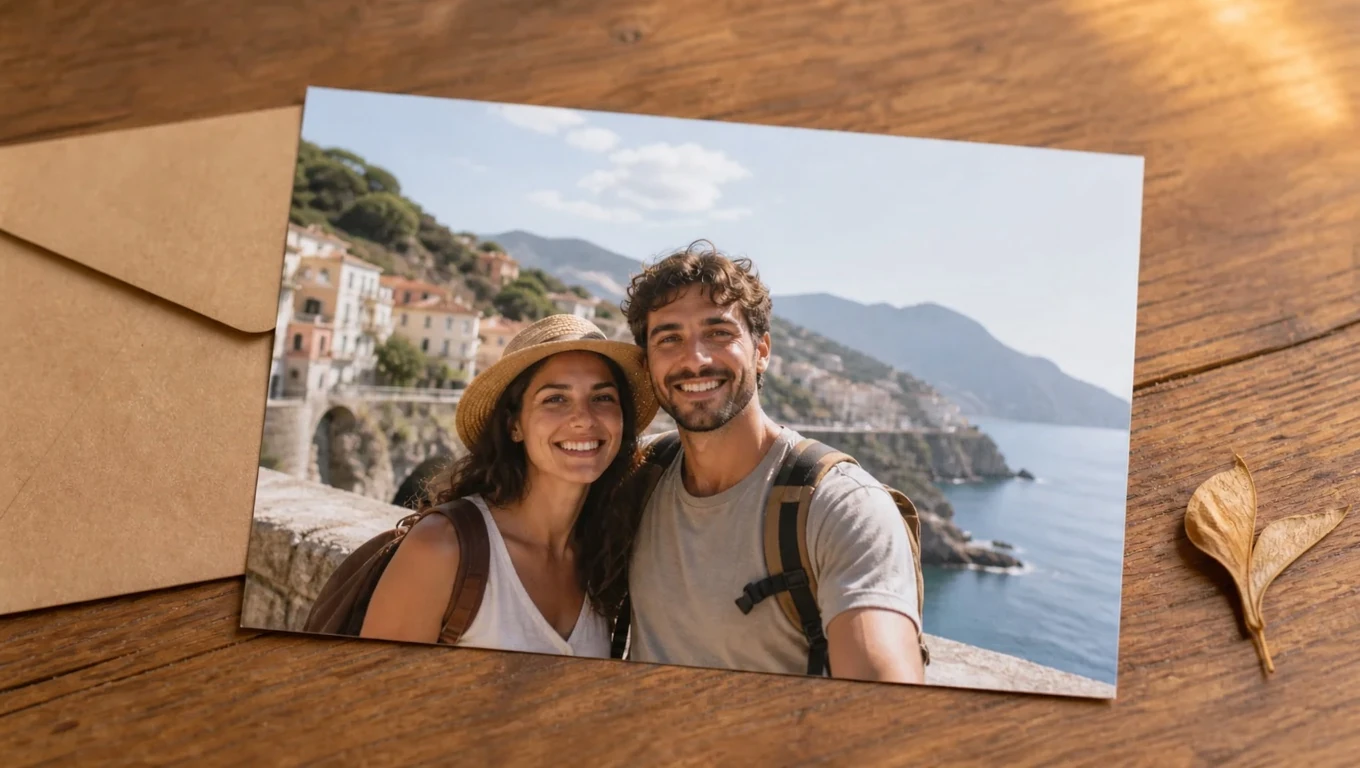
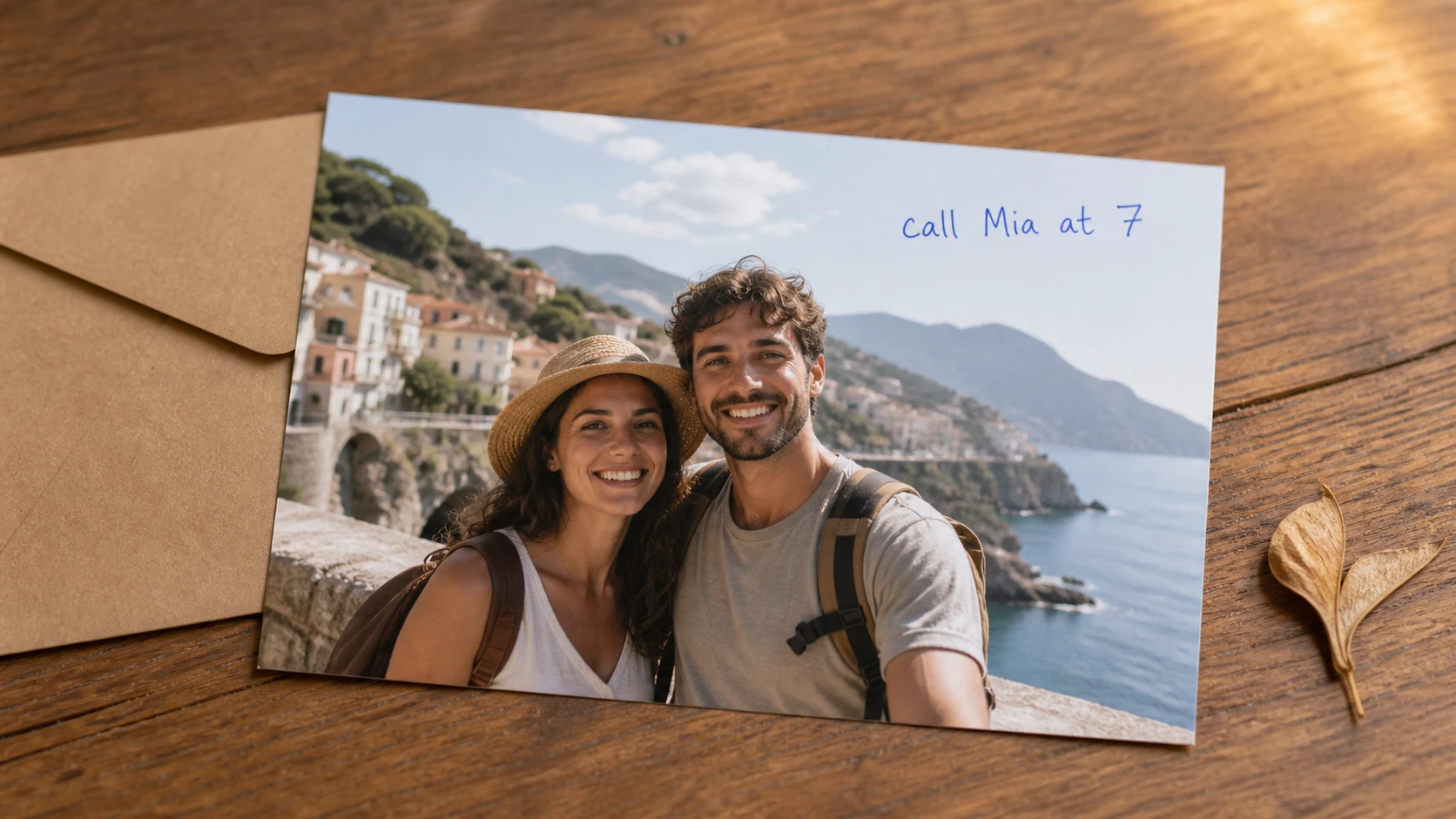
Remove a blue-pen reminder from a printed photo while keeping the travel scene intact.
In short
A writing remover is useful when cropping would throw away important context. Upload a photo or scan, mark the letters and their shadows, then check the surrounding paper, clothing, or product detail before downloading the result.
A note on a scan, a marker line on a product photo, or handwriting across an album image may be visually small but still cover meaningful texture underneath.
Handwriting has irregular strokes, pressure changes, and faint shadows. The selection needs to include all visible marks without swallowing nearby faces, document lines, fabric, or product edges.
This tool creates a plausible visual replacement; it is not appropriate for deceptive changes to official records. Keep the original source and use the result only where you are authorized to edit the image.
A review-first workflow
Use one continuous workflow: upload a copy, mark only the text, and inspect the rebuilt area before saving.
Start with a JPG, PNG, or WebP image that you have permission to edit.

Include pen strokes, letter edges, punctuation, and shadows without selecting unrelated detail.

Review paper texture, faces, line art, and product edges before downloading. Your first two successful removals each day are free.

Where precise cleanup helps
The same editor can handle several kinds of visible text when you keep the selection focused and review the result.
Prepare a display copy without a short handwritten note while preserving the original scan.
Remove an internal marker note or temporary label from product imagery you own.
Clean a small obsolete note from an authorized reference image when surrounding lines are simple.
Remove your own draft annotation from an illustration or photo before producing a final copy.
Tips for cleaner edits
A few deliberate choices give the model better context and make the result easier to review.
Light pencil marks and shadows can remain visible if the selection stops exactly at the darkest part of the writing.
Writing over drawings, faces, or repeated patterns is harder. Use a small region and review the reconstruction at full size.
Work from a copy and keep the original scan or photo unchanged for comparison and recovery.
Do not use generative cleanup to create a misleading version of a contract, certificate, receipt, or other official record.
Honest limitations
AI reconstructs selected pixels from nearby visual context. It does not recover the original pixels hidden behind text.
Useful for short handwriting, labels, notes, signatures, and visible writing in an image.
Dense documents, faces, line art, and complex textures may need a second pass or manual cleanup.
Do not use the tool to alter official records or images you are not allowed to edit.
FAQ
Practical answers about handwriting, scans, detailed backgrounds, and safe use.
You can try it on handwriting, notes, and labels in an image you own or are authorized to edit. Select the full stroke area and review the result carefully.
It can help with visible marks on a scan, but dense text, official records, and fine line work are harder to reconstruct. Keep an untouched original and do not alter documents deceptively.
Only use it for a signature or label you own or have permission to edit. The tool rebuilds selected pixels; it does not verify ownership or authenticity.
JPG, PNG, and WebP images up to 10 MB are supported. Your first two successful removals each day are free.
A missed shadow or a complex background can leave a trace. Add a small margin around the writing and retry with a focused selection.
No. The model reconstructs a plausible patch from nearby context. Keep the original file whenever exact archival fidelity matters.
Related tools and guides
Start with the general photo text remover for captions, dates, labels, and overlays.
View guideRead the guide for handwriting, notes, and permission-aware cleanup techniques.
View guideUse a focused page for orange camera dates, timestamps, and corner labels.
View guideA writing remover is useful when cropping would throw away important context. Upload a photo or scan, mark the letters and their shadows, then check the surrounding paper, clothing, or product detail before downloading the result.