

OriginalCleaned
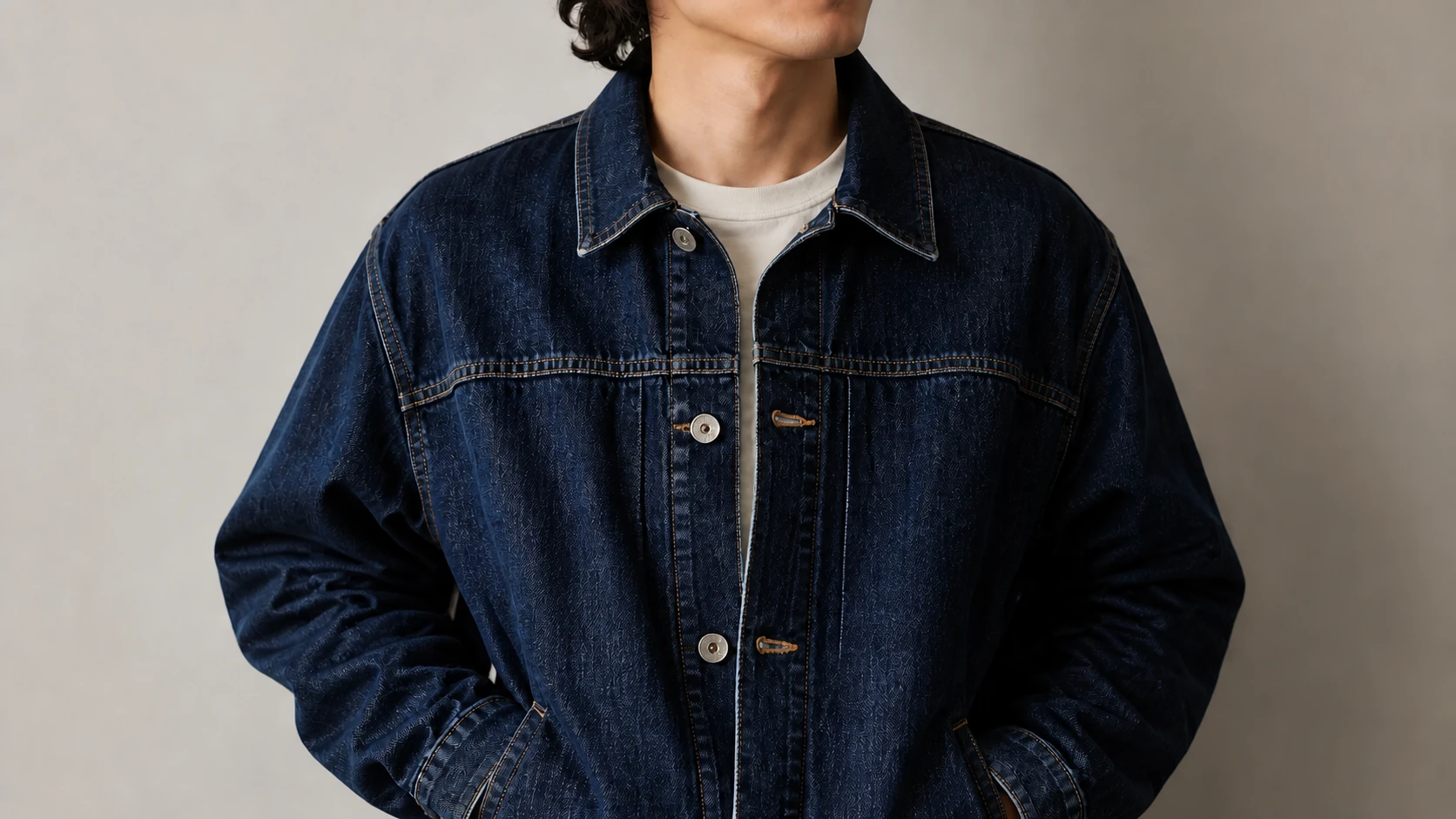
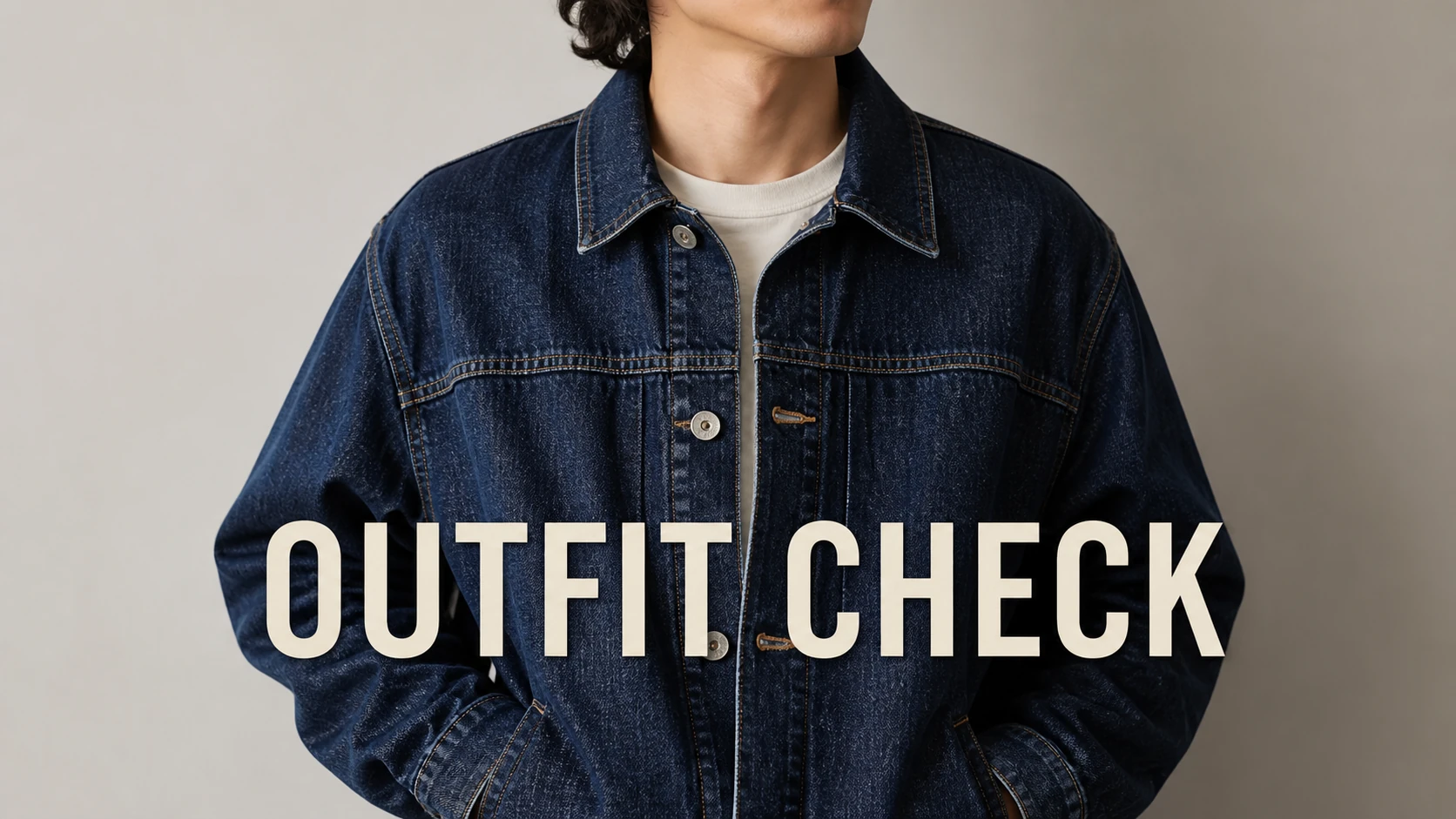
Text across clothing texture
Clear a saved outfit label while keeping denim stitching and folds intact.
AI image text remover
Upload an image, mark the text you do not need, and get a clean HD result in seconds. Get two free removals every day.
See the cleanup first
Drag the slider to compare the original and cleaned image.


JPG, PNG or WebP · up to 10 MB
Upload an image, mark the text, and rebuild only the area you select.
Drag each comparison to inspect how the editor rebuilds the selected area while leaving the rest of the image in place.
Clear a saved outfit label while keeping denim stitching and folds intact.

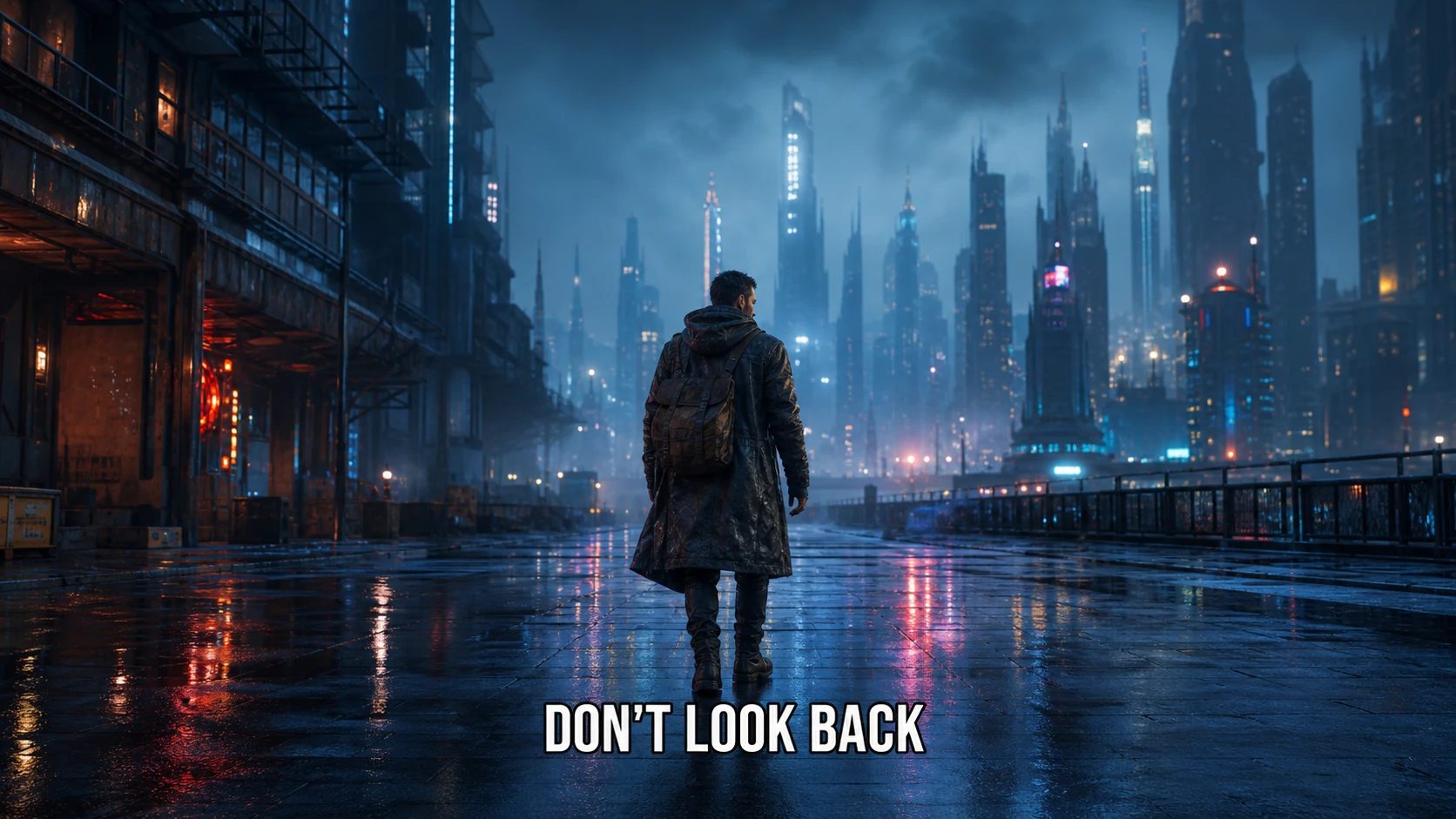
Remove a single subtitle line without disturbing the rainy city scene.


Clean an old camera date while preserving the graduate, blossoms, and path.
In short
Upload a photo or screenshot, mark only the words you want gone, and download a clean copy after reviewing the rebuilt area. RemoveTextPro is designed for captions, date stamps, labels, stickers, and short text overlays in images you own or can edit.
A good photo can become hard to reuse because of one caption, an old camera date, a sale label, or a line of writing added later. Cropping may remove the text, but it also throws away part of the composition you wanted to keep.
Manual cloning can work, yet repeated textures, gradients, and edges make it slow. A focused AI text remover lets you identify only the visible words and asks the model to rebuild that selected area from nearby context.
The result is a reconstruction, not a recovery of hidden pixels. That is why RemoveTextPro keeps the selection visible, encourages smaller regions, and gives you a result to inspect before downloading.
How it works
Use one continuous workflow: upload a copy, mark only the text, and inspect the rebuilt area before saving.
Start with a JPG, PNG, or WebP that you have permission to edit.

Draw a box only around what should disappear. Smaller selections protect more detail.

Review the cleanup, then download the result. Your first two successful removals each day are free.

Where precise cleanup helps
Start with a focused page for your exact use case, then open the same precise editor when you are ready to upload.
Clean captions, labels, dates, and other text overlays from a photo while preserving the original framing.
Remove a visible camera date or timestamp from an old photo without cropping away the corner.
Erase subtitles, meme captions, quotes, and burned-in text from a still image or screenshot.
Remove handwritten notes, labels, and visible writing from an image you have permission to edit.
Clean a caption or quote from a screenshot you own before reusing the underlying image in an authorized project.
Remove an outdated price, internal label, or short campaign line from product imagery you are allowed to edit.
Tips for cleaner edits
A few deliberate choices give the model better context and make the result easier to review.
Draw one or more regions around the text. Smaller boxes usually protect more of the surrounding image.
You get two free successful removals every day, and the workbench keeps the review step visible before download.
Uploaded originals and results are kept only for processing and download. Each task expires 24 hours after upload and is removed during cleanup. Do not upload sensitive images or files you are not authorized to edit.
Zoom in around letter edges, shadows, and repeated patterns before deciding whether the first result is ready to use.
Honest limitations
AI inpainting rebuilds selected pixels from nearby context. It is strongest when the target is small and the surrounding background is understandable.
Large selections, faces, and important edges leave less surrounding context to rebuild.
Dense patterns, fine line art, and text across complex textures may need a second pass.
Only edit images you own or are authorized to modify; keep the original file unchanged.
Pricing
Remove text free twice every day. Credits power every edit after that — one-time packs, no subscription, and credits never expire.
Sign in to view your credit balance.
Starter
$9.90
330 credits
About 110 text removals.
Popular
$29.90
1200 credits
About 400 text removals.
Pro
$59.90
3000 credits
About 1000 text removals.
One-time purchase · credits never expire · secure checkout by Stripe
FAQ
Straight answers about the AI text remover and the images it is designed to handle.
Use it for captions, dates, labels, stickers, or other text in images you have permission to edit. Dense patterns can need a second pass.
Your selection tells the model what to remove and what to protect. A smaller, precise selection usually preserves more of the original image.
No. Text over faces, intricate patterns, or dense detail is harder to reconstruct. Review every result before using it commercially.
Two successful removals are currently free each day. Check the editor for current access conditions, keep the original file, and review the result before publishing.
JPG, PNG, and WebP images up to 10 MB are supported. Larger files should be resized before uploading.
Yes. The editor can work on visible captions, dates, labels, stickers, and other marked text in images you have permission to edit.
Uploaded originals and results are kept in private task storage only for processing and download. Each task expires 24 hours after upload; after expiry it is no longer accessible and its task files are removed during the next cleanup pass. Do not upload sensitive images or files you are not authorized to edit.
The editor runs in a modern mobile browser. Upload a supported image, draw a selection with touch, and review the result before downloading.
Related tools and guides
Clean captions, labels, dates, and other text overlays from a photo while preserving the original framing.
View guideRemove a visible camera date or timestamp from an old photo without cropping away the corner.
View guideErase subtitles, meme captions, quotes, and burned-in text from a still image or screenshot.
View guideRemove handwritten notes, labels, and visible writing from an image you have permission to edit.
View guideUpload a copy, mark the exact area, and review the result before downloading. Your first two successful removals each day are free.