



OriginalCleaned
Large titles on fabric
Rebuild a patterned cloth area after clearing a campaign headline.
Photo text cleanup
Brush over a caption, date, label, or text overlay in a photo you own. RemoveTextPro rebuilds only the marked area, so you can review the surrounding background before downloading a clean copy.
See the cleanup first
Drag the slider to compare the original and cleaned image.


JPG, PNG or WebP · up to 10 MB
Upload an image, mark the text, and rebuild only the area you select.
Compare common photo cleanup cases before you upload: poster copy, labels near clothing, and date stamps near an image edge.
Rebuild a patterned cloth area after clearing a campaign headline.
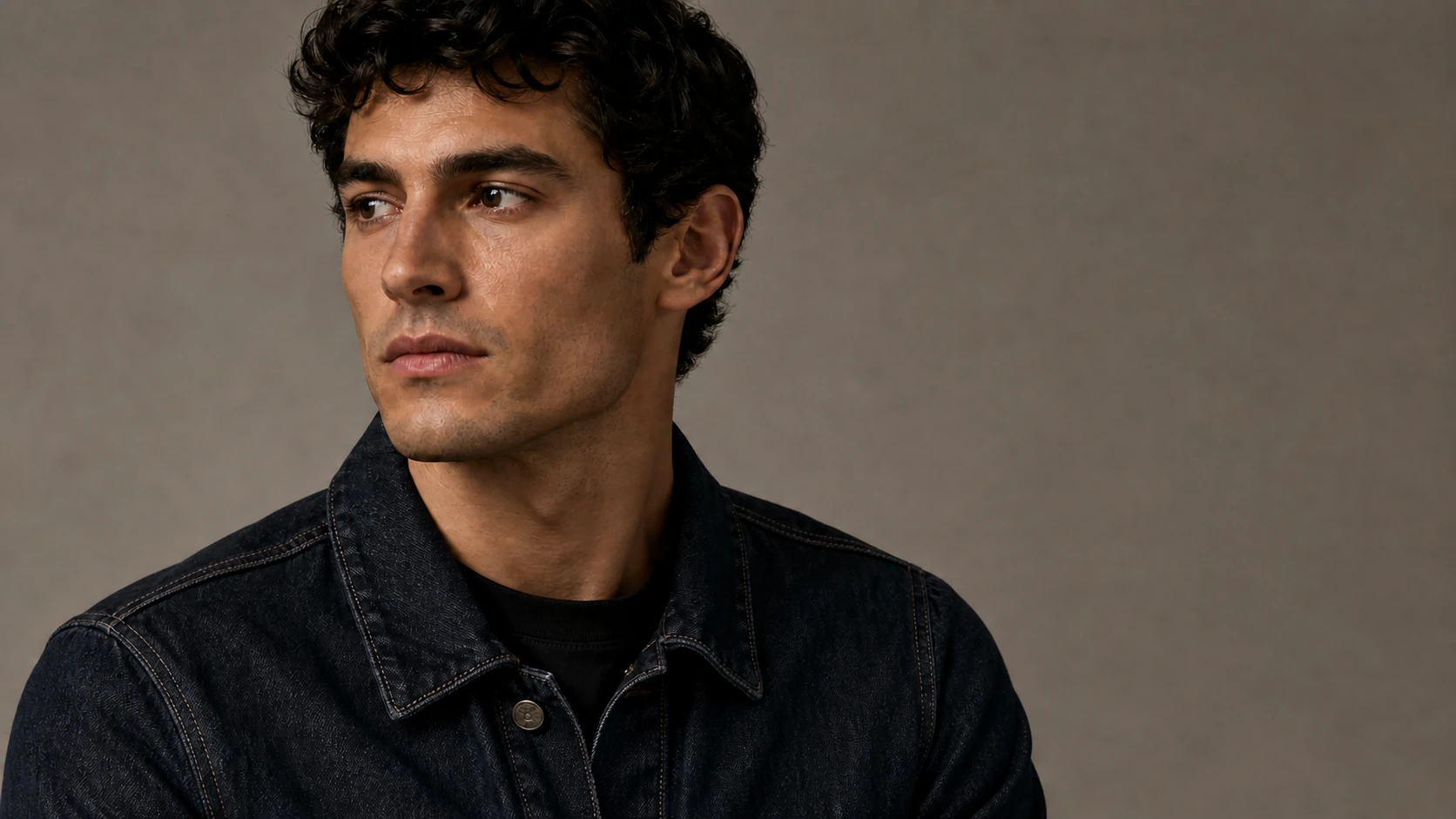
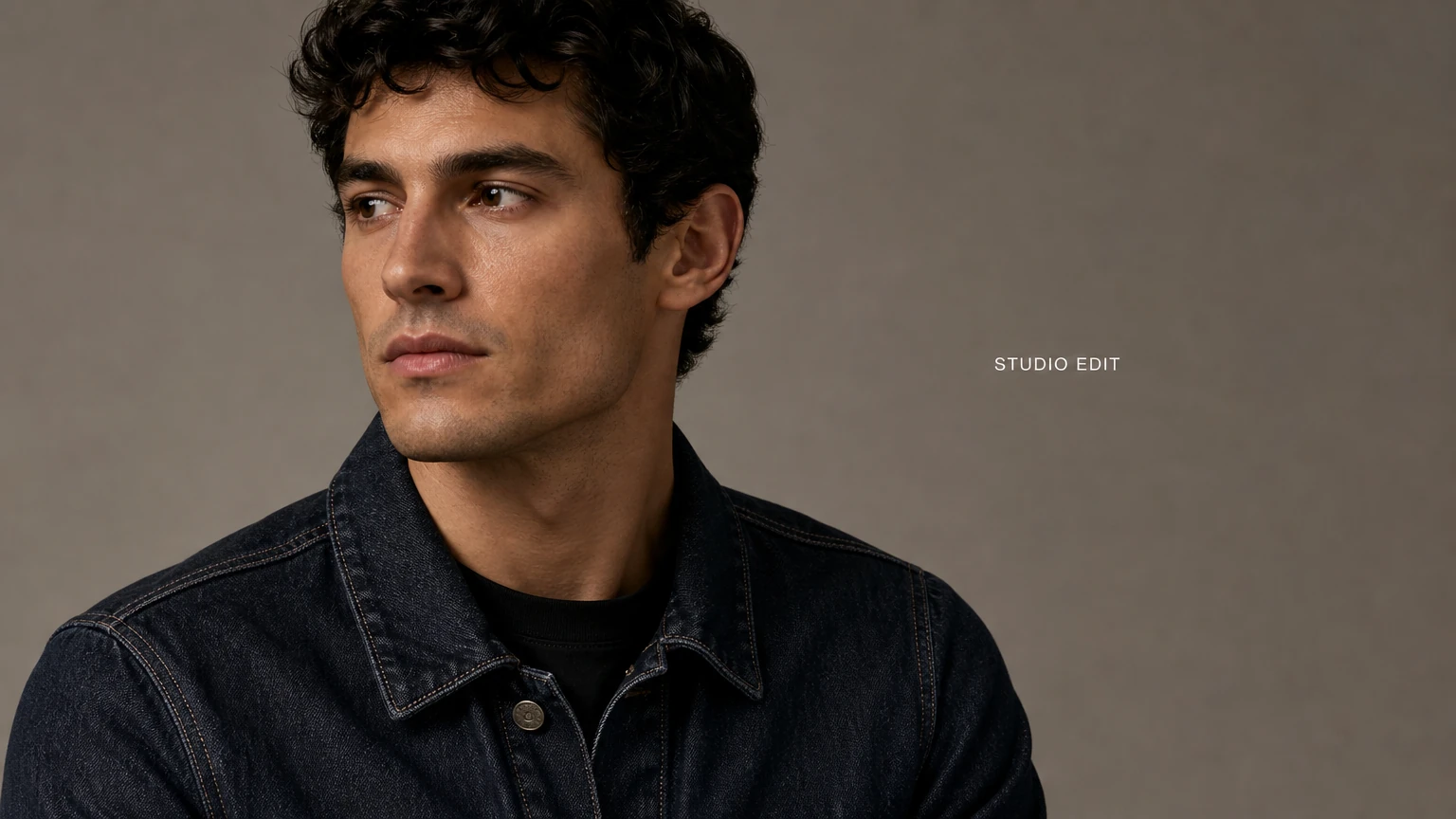
Keep the selection tight when a label sits beside seams, collars, and fabric grain.


Clear a bold poster headline while preserving the paper folds and painted shapes.
In short
Upload a photo you own, draw a tight box around a caption, date, label, or text overlay, and let RemoveTextPro rebuild only that marked area. The rest of the image stays outside the edit, so you can inspect the background before downloading. Your first two successful removals each day are free.
A date in the corner, a label beside a person, or a caption across the bottom can become the first thing you notice when you revisit a photo. Cropping is quick, but it can cut away people, context, or the original balance of the shot.
The visible text is already part of the image pixels. RemoveTextPro does not uncover a hidden original layer; it uses the unselected surroundings to create a plausible replacement inside the region you mark.
Simple sky, wall, paper, pavement, and soft gradients usually provide clearer context than faces, fine clothing, line art, or repeating patterns. A small selection and a close review are the safest workflow.
A focused workflow
Use one continuous workflow: upload a copy, mark only the text, and inspect the rebuilt area before saving.
Keep the original photo unchanged.

Avoid including faces, edges, and unrelated details.

Retry with a smaller selection if texture or borders look uneven.

Where precise cleanup helps
The same editor can handle several kinds of visible text when you keep the selection focused and review the result.
Clear a visible date or time near a photo edge while preserving the original framing.
Remove a short title or event label from a photo you own before creating a new authorized version.
Clean an outdated price, size note, or internal label near a product without cropping the item.
Remove a short handwritten or typed note from a scan while keeping an untouched archival copy.
Tips for cleaner edits
A few deliberate choices give the model better context and make the result easier to review.
Upload a copy so the untouched original remains available if you want to compare the cleanup later.
Cover the whole letterform, including punctuation and shadows, while avoiding nearby faces, edges, or clothing details.
Repeating patterns and fine line art need a closer look. If a patch feels uneven, retry with a smaller box.
Check both the selected patch and nearby colors at full size before publishing or printing the result.
Honest limitations
AI reconstructs selected pixels from nearby visual context. It does not recover the original pixels hidden behind text.
Works best for captions, date stamps, labels, and short text overlays.
Detailed textures, faces, and repeating lines need a closer review.
Use only on photos you own or are authorized to edit.
FAQ
Practical answers about what this photo text remover can handle and what to check before saving.
Captions, date stamps, labels, short quotes, and other burned-in text are good starting points. The tool edits selected pixels rather than an editable text layer.
The model receives the regions you draw, so a smaller selection usually protects more of the surrounding image. Always review the result before publishing.
JPG, PNG, and WebP images up to 10 MB are supported. Larger files should be resized before uploading.
You can try, but faces, borders, and fine product details give the model less room to reconstruct. Keep the selection tight and inspect the result carefully.
Two successful removals are currently free each day. Check the editor for the current access conditions, keep the original file, and review the result before publishing.
Uploaded originals and results are kept in private task storage only for processing and download. Each task expires 24 hours after upload; after expiry it is no longer accessible and its task files are removed during the next cleanup pass. Do not upload sensitive images, and edit only files you have permission to use.
Related tools and guides
Upload a photo you own, draw a tight box around a caption, date, label, or text overlay, and let RemoveTextPro rebuild only that marked area. The rest of the image stays outside the edit, so you can inspect the background before downloading. Your first two successful removals each day are free.