

How to Remove Text From Comics and Manga You Can Edit
Learn how to remove text from comics and manga online: choose whether to keep or remove speech bubbles and caption boxes while reviewing Japanese lettering, sound effects, and line art.
On this page
- What can you remove from a comic or manga image?
- How to remove text from manga online
- Case 1: Remove dialogue while keeping a speech bubble
- Case 2: Clean a narration or caption box
- Case 3: Remove a sound effect over line art
- Case 4: Remove dialogue from a full-color comic
- How to clean manga for translation
- Remove text with Photoshop or an online manga text remover?
- How to fix common manga cleanup failures
- What the manga text remover can and cannot restore
- Frequently asked questions
- How do I remove text from manga online?
- Can I remove Japanese text from a manga image?
- Can I remove text from a speech bubble without deleting the bubble?
- Can I remove a whole speech bubble or caption box?
- Can I remove manga sound effects over the artwork?
- Will the line art and screentones stay intact?
- Can I use the cleaned image for manga translation?
- What image formats and file sizes are supported?
- Can I remove text from a comic I found online?
- Use the manga text remover
To remove text from comics and manga online, upload an authorized JPG, PNG, or WebP, choose Manga cleanup mode, select whether bubbles and text boxes should stay, and review the rebuilt art before downloading. RemoveTextPro currently offers a keep-bubbles scope and a remove-bubbles-and-boxes scope. RunningHub processes the full page from the selected scope; it does not recover the exact hidden artwork.
This guide is for artwork you created, licensed, commissioned, or have explicit permission to edit. Keep the untouched source file, and treat every generated result as a reviewable working copy.
What can you remove from a comic or manga image?
The best cleanup scope depends on what you want to keep. Keep bubbles and text boxes when you want an empty speech bubble for new dialogue. Remove them only when you need a clean base for a new layout and accept a larger reconstruction area.
| Lettering or object | First choice | What to inspect afterward |
|---|---|---|
| Dialogue inside a speech bubble | Remove lettering only | Bubble outline, tail, leftover punctuation, and interior tone |
| Narration or caption box | Remove lettering only; use the box option only when the box must also go | Straight borders, corners, and screentone continuity |
| Vertical Japanese text | Remove lettering only, one narrow column at a time | Furigana, nearby bubble edges, and reading-order marks |
| Sound effects over the drawing | Remove lettering only and review the surrounding line art | Speed lines, character contours, shadows, and texture direction |
| A full bubble or caption box | Remove lettering and its box | The larger hidden area that must be reconstructed |
If the goal is translation, the usual target is a clean base: remove the original dialogue while keeping the bubble shape, panel composition, and artwork that will sit behind the translated lettering.
How to remove text from manga online
- Keep an authorized source copy. Use the highest-resolution original you are allowed to edit. Do not overwrite the source, and avoid starting with a screenshot that has already been resized or recompressed.
- Upload a supported file. The current manga editor accepts JPG, PNG, or WebP images up to 10 MB. A sharp source preserves more line and halftone detail for the review step.
- Open Manga cleanup mode. The manga editor processes the full page through RunningHub, so no manual text selection or drawing is needed.
- Choose the removal scope. Select Keep bubbles and text boxes; remove lettering when the bubble, caption border, or panel structure should stay. Select Remove bubbles and text boxes too when you need a larger clean base for new typesetting.
- Process, zoom to 100%, and compare. Check the result at full size and at normal reading size. Pay special attention to faces, borders, speed lines, screentones, and any large sound effects.
- Save the clean base before typesetting. Add translated or replacement lettering in a separate layout step so you can compare the final page with the untouched source.
For a direct browser workflow, upload an authorized comic or manga image. If you are preparing a non-manga image for localization, see how to remove text from an image before translation.
Case 1: Remove dialogue while keeping a speech bubble
The easiest manga cleanup case is dark lettering inside a light, mostly empty bubble. Choose the keep-bubbles scope. This preserves the clean border and tail while leaving an empty area for new dialogue.
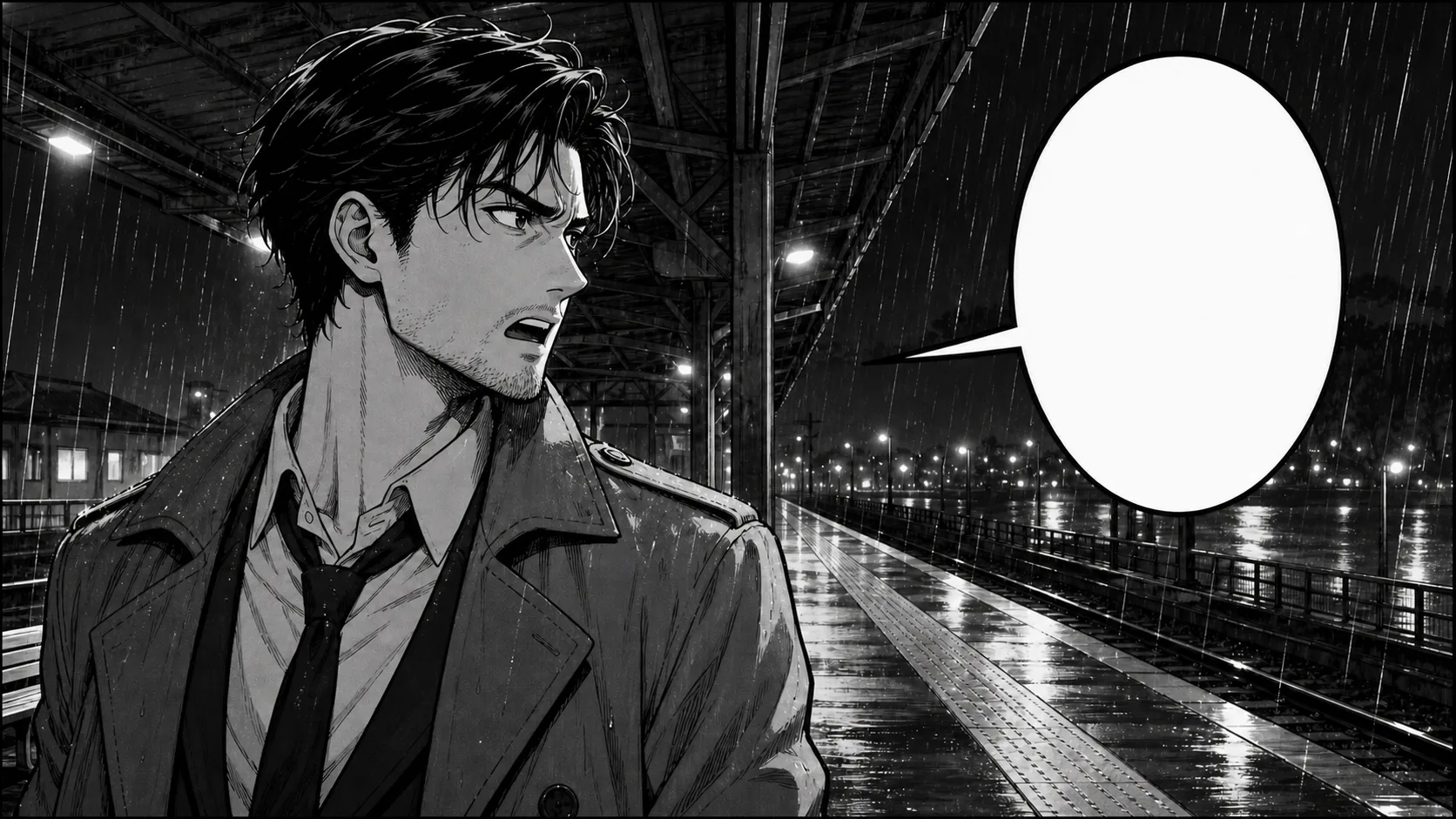
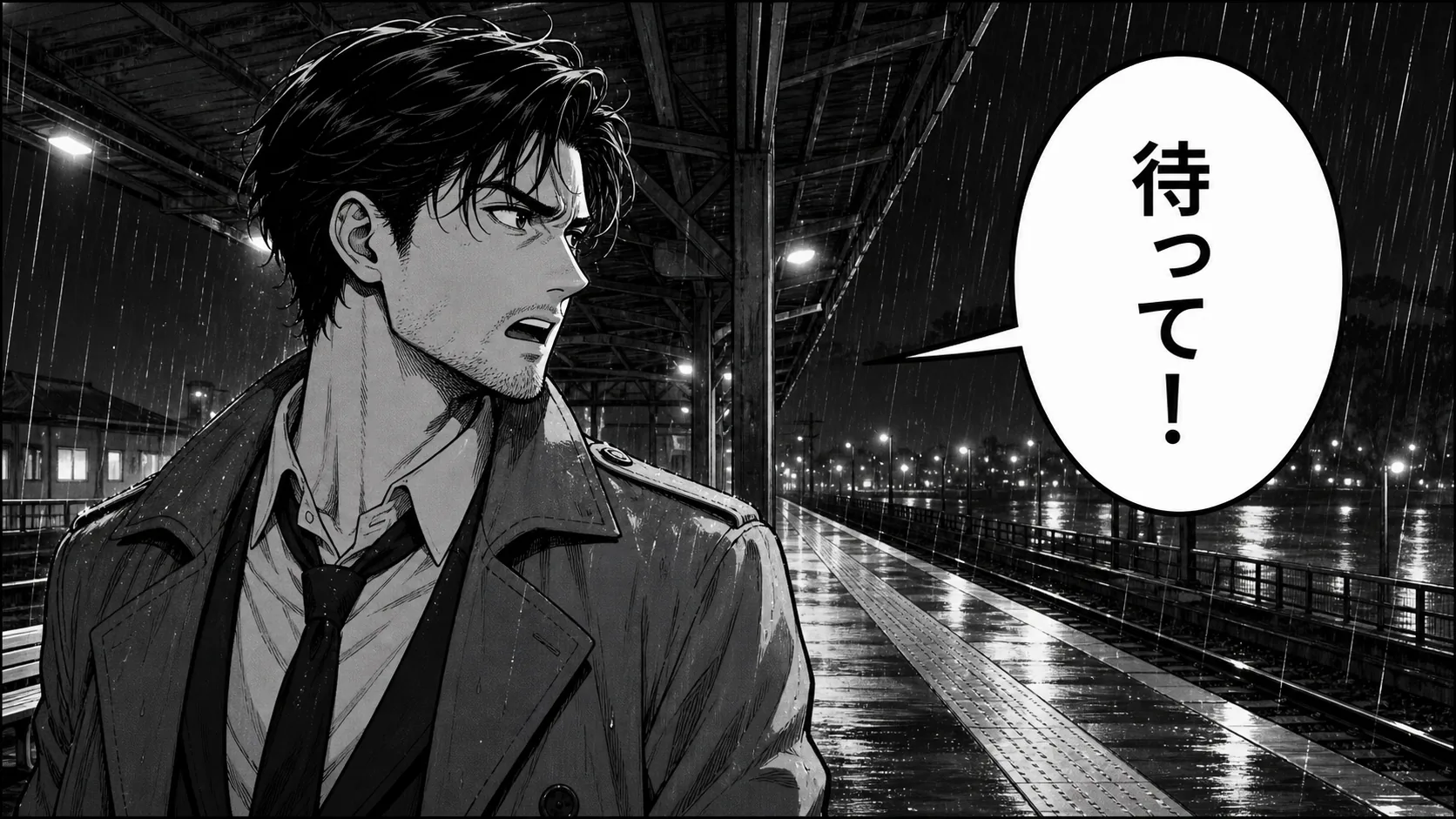
Check the inner curve of the bubble, the tail pointing toward the speaker, and any tiny punctuation left near the edge. A result can look clean when zoomed out while still showing a broken black contour at 100%.
Case 2: Clean a narration or caption box
Caption boxes contain straight edges that are easy to damage when the model has to rebuild them. Choose the keep-bubbles scope when the box should remain. If the caption box itself must disappear, use the remove-bubbles-and-boxes scope and inspect each corner as a separate structural edge.
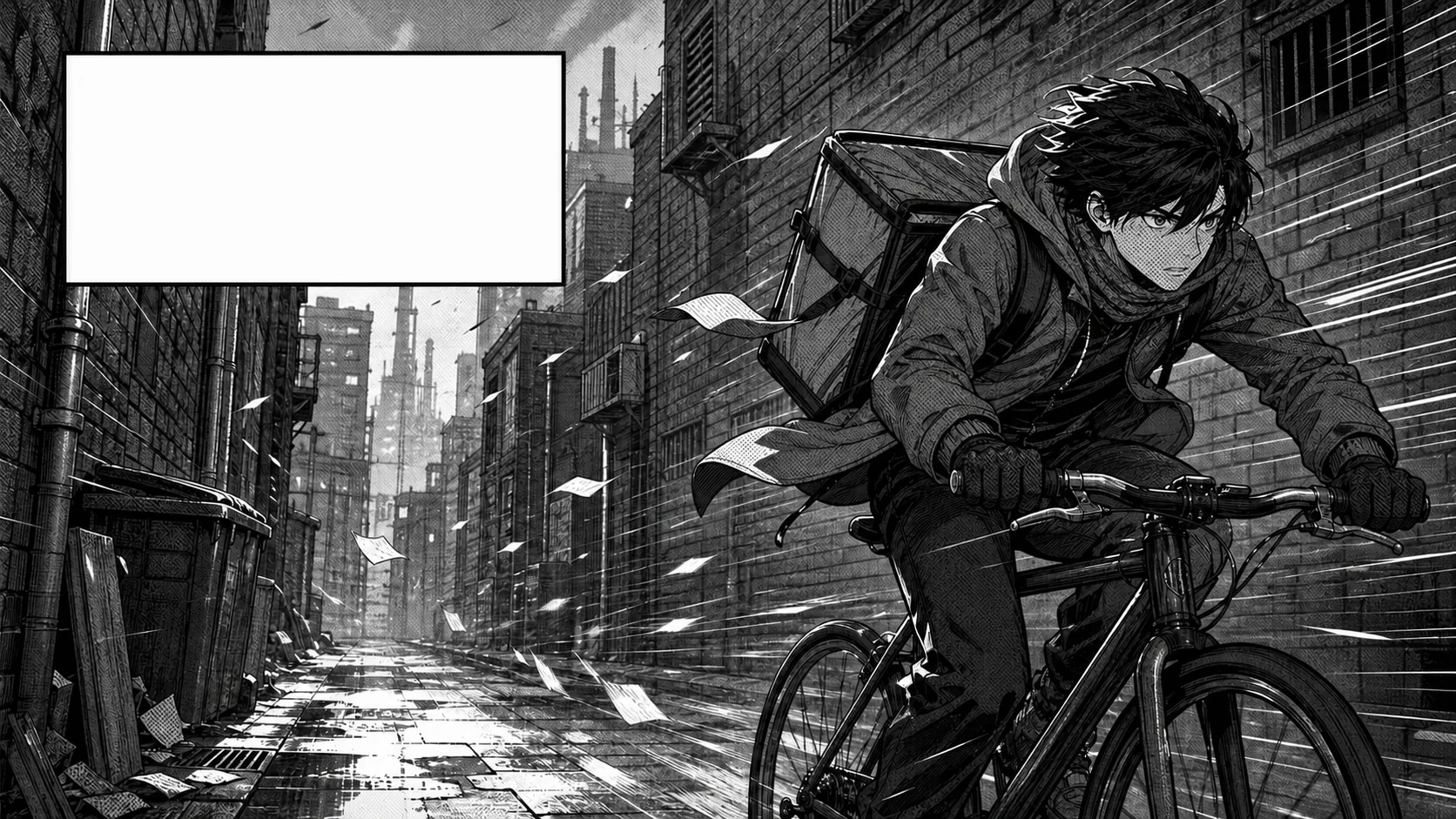
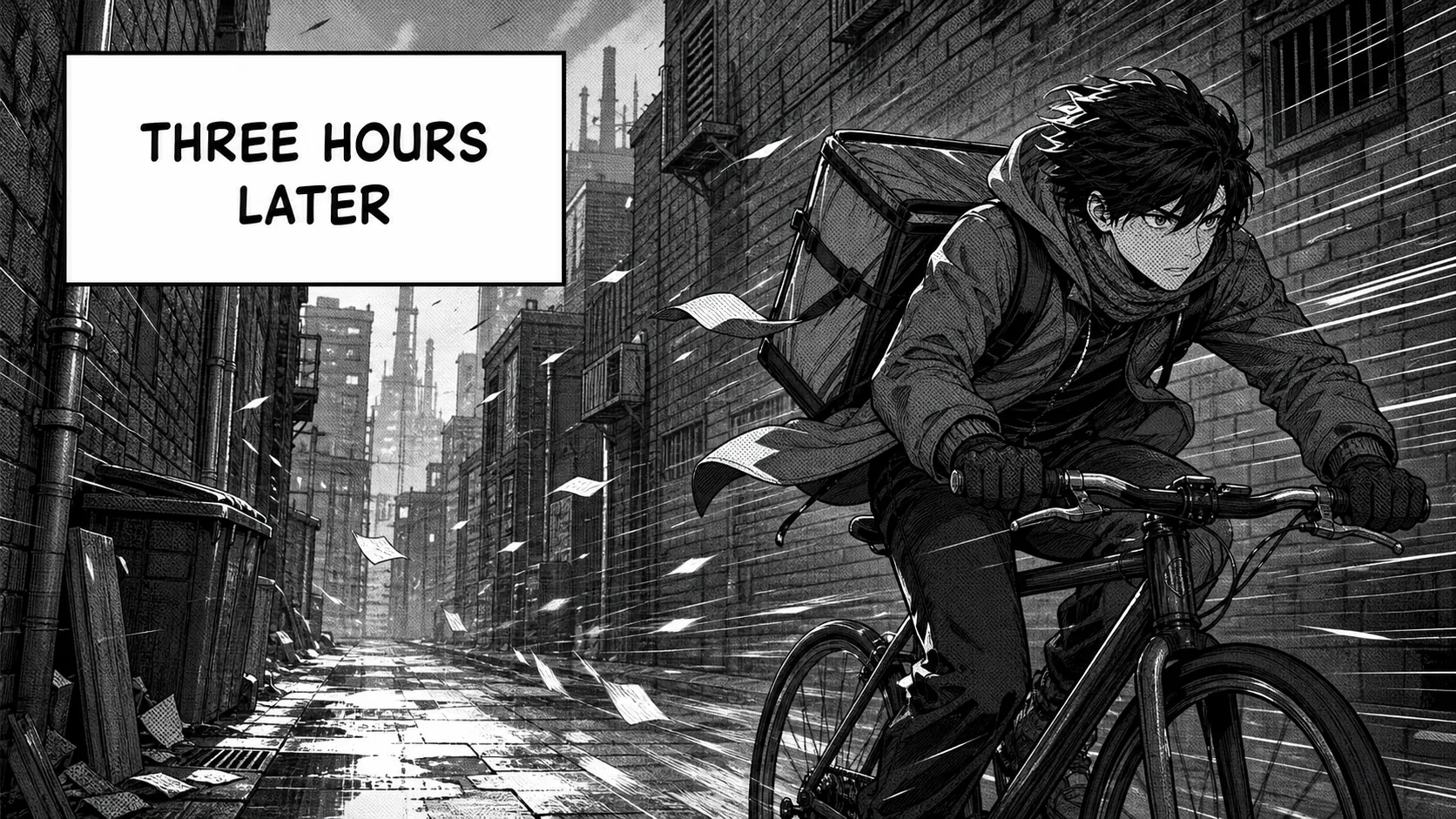
Look for a softened border, a corner that no longer meets, or a dot pattern that changes density inside the repaired area. If the box spans several textures, compare the keep-bubbles and remove-bubbles scopes before choosing the version for typesetting.
Case 3: Remove a sound effect over line art
Sound effects are a different problem from dialogue. They may be large, stylized, rotated, outlined, or drawn directly over speed lines and characters. Choose the least destructive scope first and expect more manual review than you would for text inside an empty bubble.
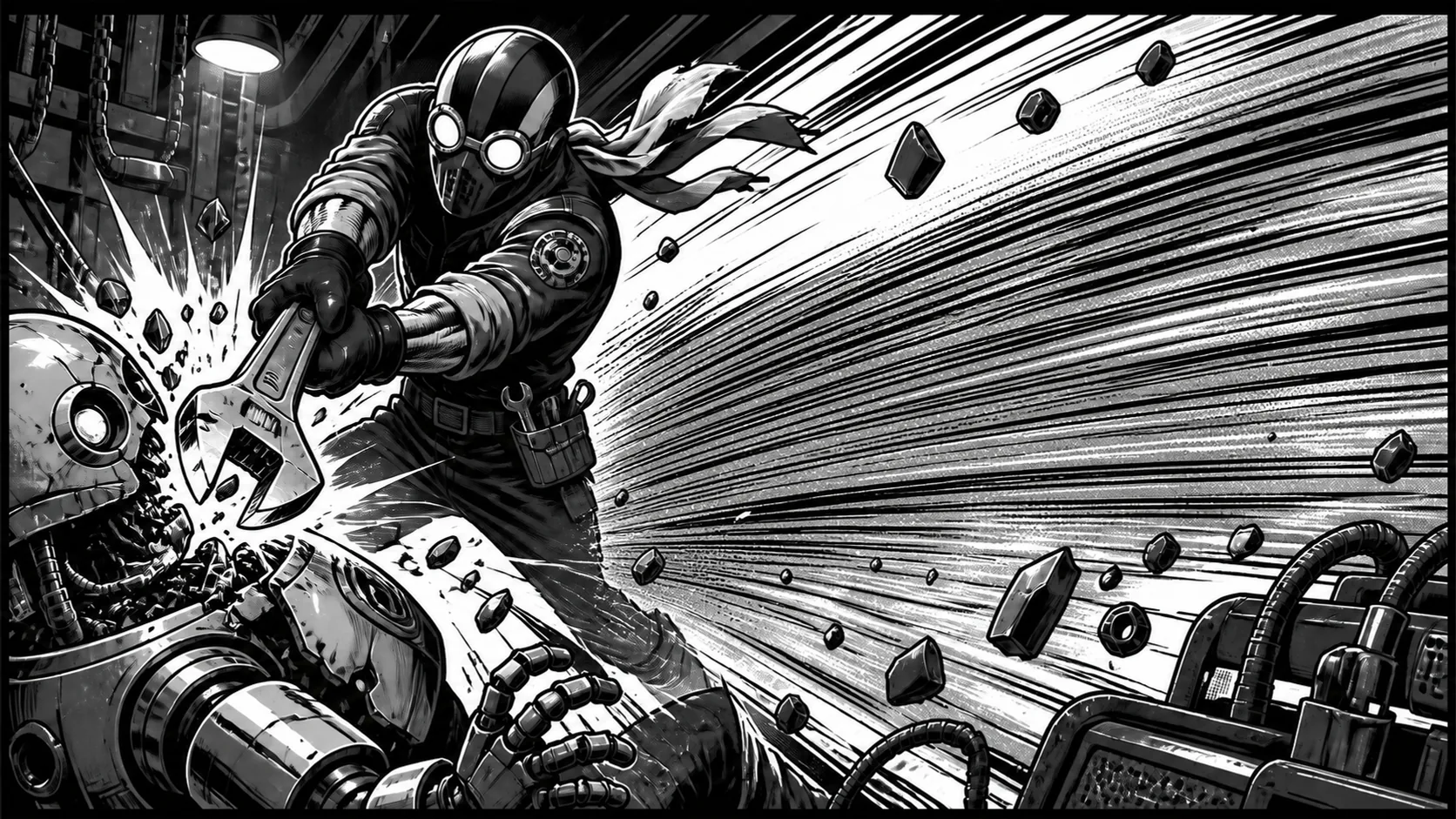
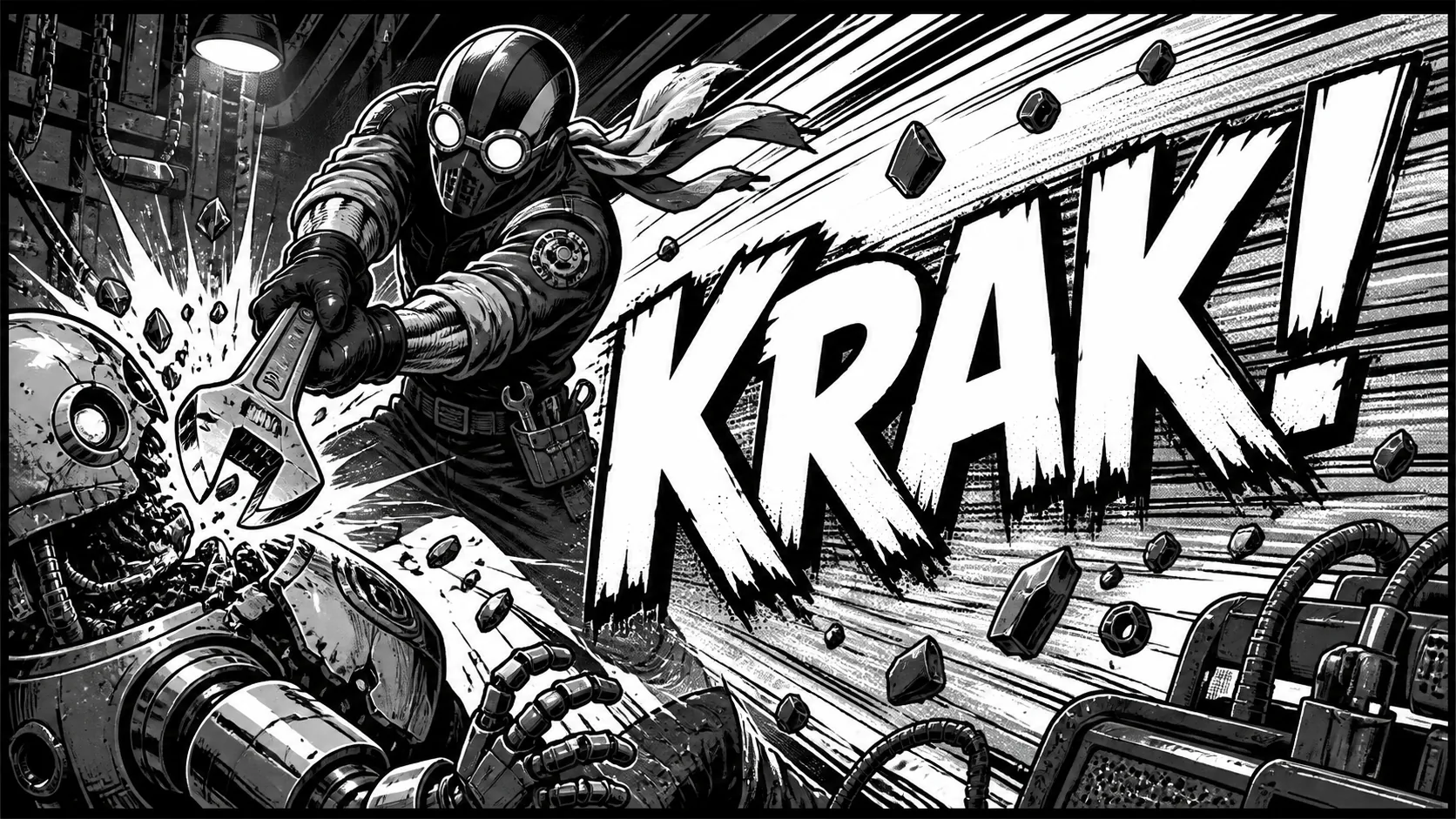
Inspect speed-line direction, character silhouettes, impact marks, and any repeated texture behind the letters. If the output invents a smooth patch or breaks a line, retry with the keep-bubbles scope. Large sound effects over a face or hand may still need Photoshop, Clip Studio Paint, or another manual editor.
Case 4: Remove dialogue from a full-color comic
Color panels add gradients, soft shadows, and lighting changes to the same cleanup problem. Compare the repaired color with the surrounding sky, skin, clothing, and light sources, especially when removing a bubble or caption box.
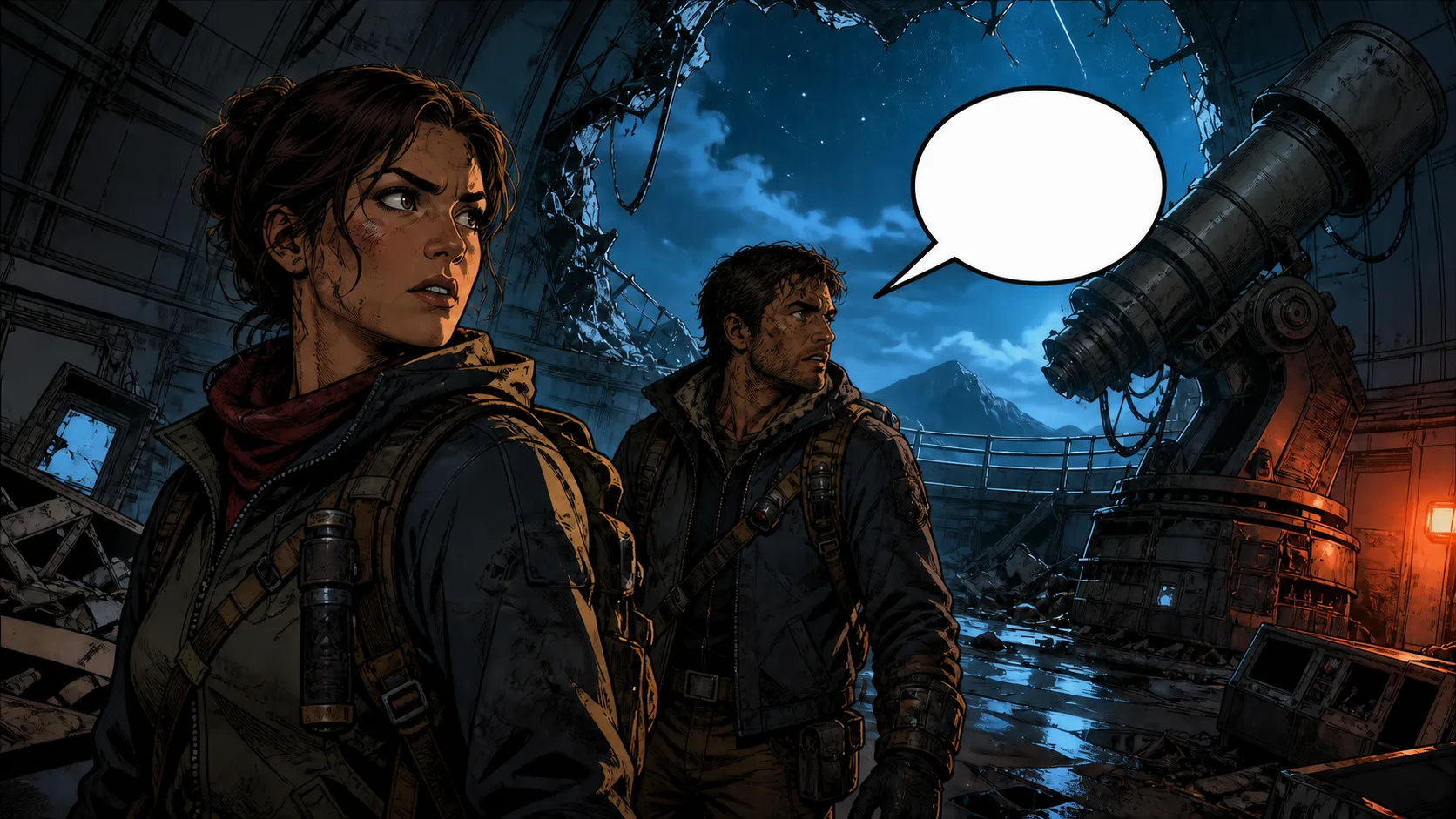
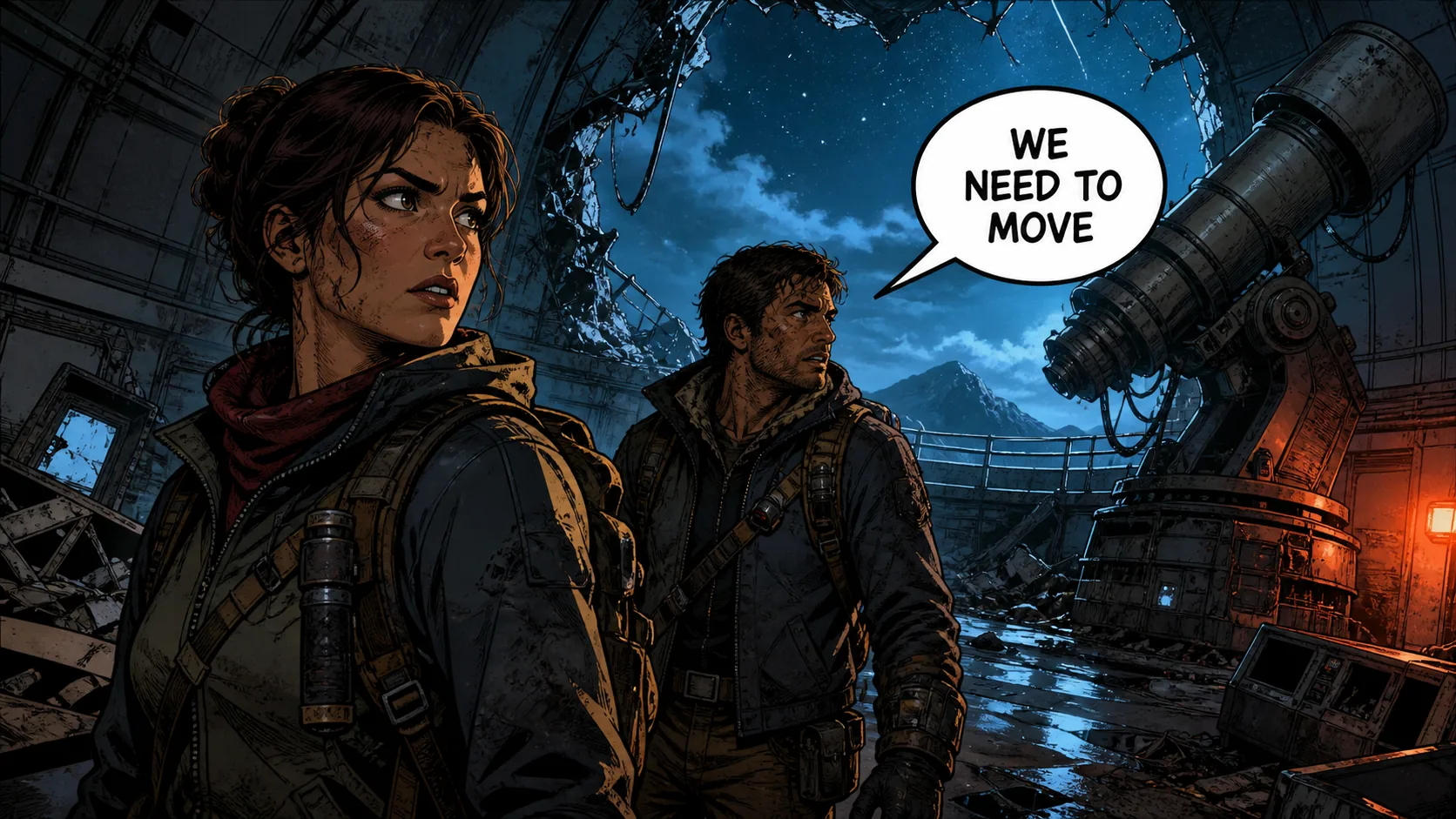
Color matching is not only about whether the words disappeared. Check for a visible patch, a changed shadow edge, or a gradient that suddenly becomes flat. These four examples use original fictional panels prepared for this site; they explain the workflow, not a production benchmark or a guarantee for every comic page.
How to clean manga for translation
Text removal is only one stage in a localization workflow. A clean page is a base for translation and typesetting, not a completed translated page.
- Preserve the untouched original and record the page or panel order.
- Remove source dialogue, narration, and only the sound effects that should not remain in the target edition.
- Review the clean base for leftover glyphs, broken lines, missing dots, and changed faces before translating.
- Translate and proofread the script as text first. This catches terminology and line-length problems before they are placed in the artwork.
- Typeset the new language in a separate layer or editor. Check font weight, reading direction, line breaks, bubble padding, and emphasis.
- Run a final page-by-page quality check at both normal reading size and 100% zoom.
The tool does not OCR, translate, choose a font, or guarantee that a replacement phrase will fit the original bubble. For the broader workflow, read how to remove text from an image before translation. For a manual desktop route, compare the process with how to remove text from an image in Photoshop.
Remove text with Photoshop or an online manga text remover?
Both approaches are useful, but they solve different parts of the job.
| Situation | Online manga editor | Photoshop or another manual editor |
|---|---|---|
| One or a few flattened panels | Fast to upload, choose a scope, and compare | More setup than the task may need |
| A layered source with a separate text layer | Not necessary if hiding the layer is enough | Best: hide or edit the text layer without reconstructing pixels |
| Text inside a plain bubble | Scope-based full-page cleanup can be efficient | Manual fill gives direct control |
| SFX over a face, hand, or dense line art | Useful as a first pass, but inspect carefully | Better for detailed redraw and reference layers |
| A full chapter or production release | Check the output page by page and confirm the workflow fits your rights | More control over layers, actions, redraw, and final proofing |
Do not judge a method only by whether the lettering vanished. Compare the line continuity, halftone rhythm, color, canvas dimensions, and export quality. If exact restoration matters, use the original layered artwork or manual redraw; a flattened image cannot reveal pixels hidden under the source text.
How to fix common manga cleanup failures
- A halo or a few glyphs remain: retry the page with the same cleanup scope and inspect the full lettering area at 100%. Keep the original source available for comparison.
- The bubble border is broken: switch to the keep-bubbles scope. Removing a bubble or box asks RunningHub to rebuild a larger structural edge.
- A panel line or face changed: use the keep-bubbles scope and compare the result again. If the hidden feature is unique, switch to manual redraw rather than asking the model to reconstruct a larger area.
- Screentones look muddy: work from the sharpest source and inspect repeated dots or hatching at 100%. The remove-bubbles scope may require more reconstruction than the keep-bubbles scope.
- A sound effect leaves a smooth patch: retry with the keep-bubbles scope and inspect speed lines, character contours, and background surfaces carefully.
- The entire image looks softer: compare the output dimensions and file size with the source. Avoid repeated JPEG exports, and keep a lossless working copy when you will edit again.
- The clean base has no room for new text: remember that removal and typesetting are separate. Resize the new lettering, adjust the bubble layout, or redraw the bubble in your layout tool instead of asking the remover to predict the translation.
What the manga text remover can and cannot restore
The manga editor sends the full page to RunningHub with your chosen cleanup scope. The keep-bubbles scope asks the model to preserve speech bubbles, caption boxes, and surrounding artwork; the remove-bubbles scope asks it to reconstruct a larger area. This is useful for cleanup, but it is not pixel recovery. The more hidden detail a page contains—faces, hands, panel borders, speed lines, or unique backgrounds—the less predictable the reconstruction becomes.
The current manga mode is designed for guided full-page cleanup, not a promise that every page can be cleaned without retouching. Use a high-resolution authorized source, keep the original, and accept the result only after visual review. Do not upload artwork merely because it is easy to find online; permission to view or download a page is not the same as permission to alter or redistribute it.
Frequently asked questions
How do I remove text from manga online?
Upload an authorized JPG, PNG, or WebP up to 10 MB, open Manga cleanup mode, choose whether to keep or remove bubbles and text boxes, and process the full page. Inspect line art and screentones at 100%, then download the reviewed copy.
Can I remove Japanese text from a manga image?
Yes. RunningHub can process visible horizontal or vertical Japanese lettering as part of the full manga page. Check furigana, nearby bubble edges, panel borders, and line art after processing. The remover cleans pixels; it does not translate the Japanese text.
Can I remove text from a speech bubble without deleting the bubble?
Yes. Choose Keep bubbles and text boxes; remove lettering. This is the recommended approach when you want an empty bubble for new dialogue. If the bubble itself must disappear, choose Remove bubbles and text boxes too and expect a larger reconstruction area.
Can I remove a whole speech bubble or caption box?
You can choose Remove bubbles and text boxes too, but the result is less predictable because more background is hidden. Use that option only when the bubble or box itself must go, and inspect the panel border, character contours, and textures around the larger reconstructed area.
Can I remove manga sound effects over the artwork?
You can process sound effects and stylized lettering, but large SFX often cover speed lines, faces, hands, or textured backgrounds. Review the result carefully and expect to manually touch up complex redraws.
Will the line art and screentones stay intact?
The keep-bubbles scope is designed to preserve the bubbles and surrounding artwork, while the remove-bubbles scope reconstructs a larger area. Neither scope guarantees perfect recovery of hidden strokes or repeated screentones. Review at 100% before using the page.
Can I use the cleaned image for manga translation?
If you are authorized to localize the artwork, the cleaned result can be a draft base for translation. Translation, proofreading, font selection, reading direction, and typesetting remain separate steps. Save the clean base before adding the replacement language so you can revise the layout safely.
What image formats and file sizes are supported?
The current manga editor accepts JPG, PNG, and WebP images up to 10 MB. Start with the highest-resolution authorized source available, keep the original separately, and compare the downloaded dimensions with the source before continuing your layout work.
Can I remove text from a comic I found online?
No. Use only artwork you created, licensed, commissioned, or have explicit permission to edit. Removing visible lettering does not transfer copyright or grant permission to publish, translate, or redistribute the underlying comic.
Use the manga text remover
Ready to test one authorized panel? Open the comic and manga text remover, choose the bubble cleanup scope, and review the reconstructed art before downloading. If your next step is localization, continue with the translation-preparation guide; if the panel is a general image rather than manga, use the background-preserving text-removal guide.