

How to Remove a Date Stamp From a Photo Without Cropping
Learn how to distinguish a visible date stamp from EXIF metadata, remove it without cropping, and inspect the repaired corner while preserving the original.
On this page
- Visible date stamp or EXIF metadata?
- Remove a burned-in date in five steps
- Three synthetic date-stamp backgrounds
- Date stamp difficulty depends on the background
- Why cropping is not always the answer
- Common problems and fixes
- Sources and research notes
- Frequently asked questions
- Does removing a visible date change the EXIF capture date?
- Can I remove the date from hundreds of photos automatically?
- Is it better to remove or preserve dates on old family photos?
- Why is a date over grass harder than a date over the sky?
Before you edit, determine whether the date is burned into the image pixels or exists only in EXIF metadata. A visible stamp needs pixel repair; a metadata-only date needs a metadata editor. If you do repair the pixels, preserve an untouched original, use the smallest complete selection, and inspect the result at full size.
For a direct online workflow, use the date-stamp remover after you confirm the date is visibly part of the image.
Use this process for photos you own or are authorized to edit. Keep the untouched original whenever the date has historical, documentary, or evidentiary value.
Visible date stamp or EXIF metadata?
A visible date stamp is part of the image pixels. It appears when you view, export, or print the photograph. EXIF metadata is information stored alongside the pixels, such as capture date, camera model, and sometimes location. Editing EXIF does not erase orange digits already printed into a JPG; removing visible digits does not change the original capture date stored in metadata.
Use this quick check:
| What you see | What it means | Correct action | | -------------------------------------------------------- | ------------------------------------------ | ------------------------------------ | | Date digits are visible in every viewer | The date is burned into the pixels | Use a local image repair | | No visible date, but the file shows a wrong capture date | The issue is metadata | Edit metadata; do not alter pixels | | A camera app can hide the date before saving | The stamp may still be an editable overlay | Export a clean original if available | | Only the shared or downloaded copy has a date | Another app added it | Find the earlier source file first |
Finding a clean original is always better than reconstructing hidden pixels.
Remove a burned-in date in five steps
- Duplicate the original photo. Avoid screenshots or copies that have already been compressed several times.
- Zoom into the stamp. Include all digits, punctuation, glow, shadow, and colored fringe.
- Keep the mask tight. Do not select the entire corner. If the date crosses two surfaces, split it into separate edits.
- Inspect the repair at 100%. Look for broken frame lines, repeated texture, smooth patches, and mismatched grain.
- Export once. Save a new file at the highest practical quality and retain the original for reference.
Dates often use bright orange or red pixels with a glow. A mask that covers only the solid center leaves a faint numeric halo, so include the full visible effect without swallowing unrelated background.
Three synthetic date-stamp backgrounds
These synthetic inputs show why the same corner stamp can vary from straightforward to difficult. Each result was prepared with an AI-assisted image editor, with no later hand retouching; these are not outputs from a tested production RemoveTextPro build. Because the text and scene were generated together, there is no pixel-perfect clean reference; inspect visible residue, texture continuity, grain, and object edges instead.


The coastal case combines a stamp with a dark rock silhouette. Check whether the rock texture and edge remain believable after the digits disappear.
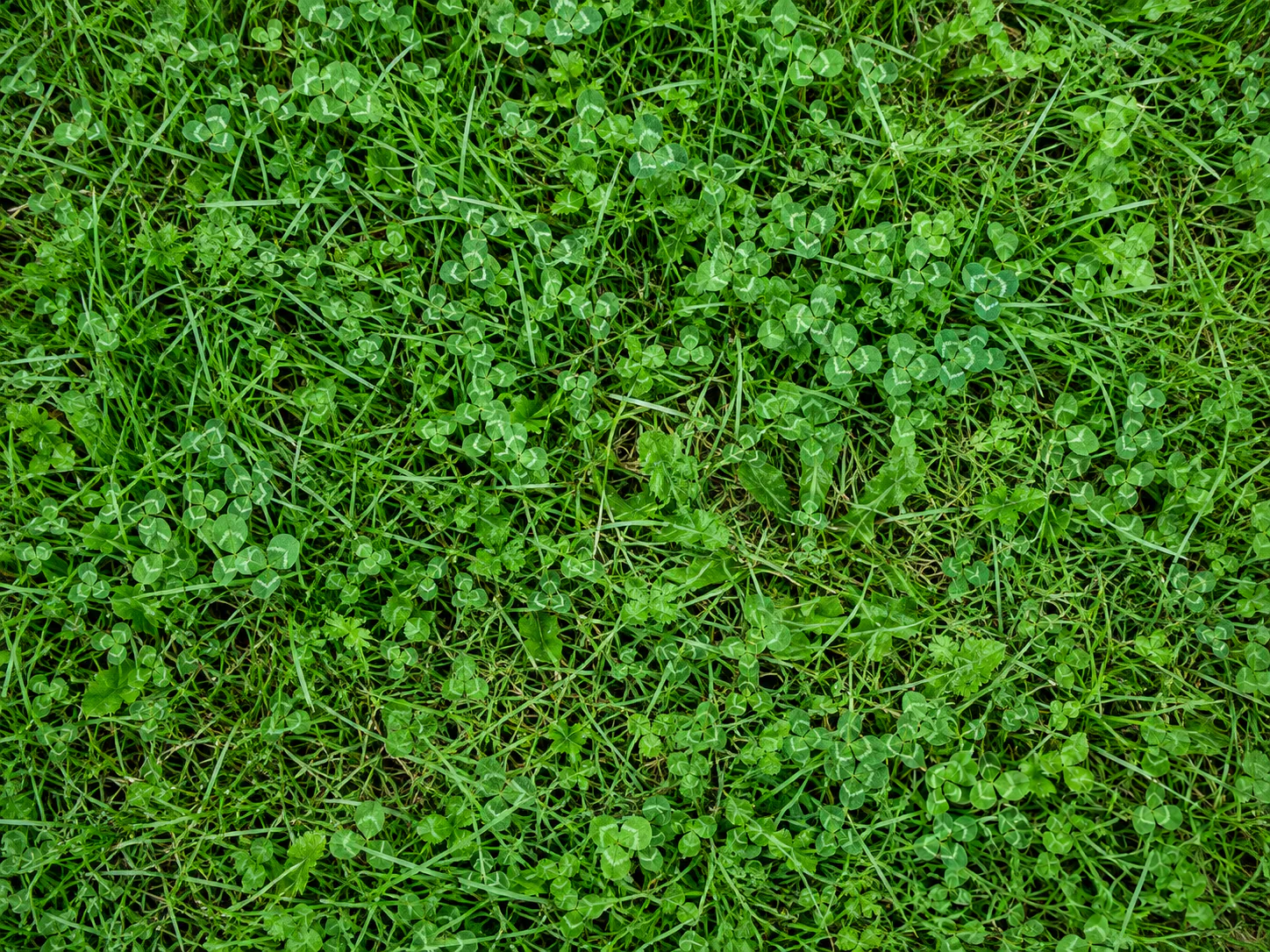
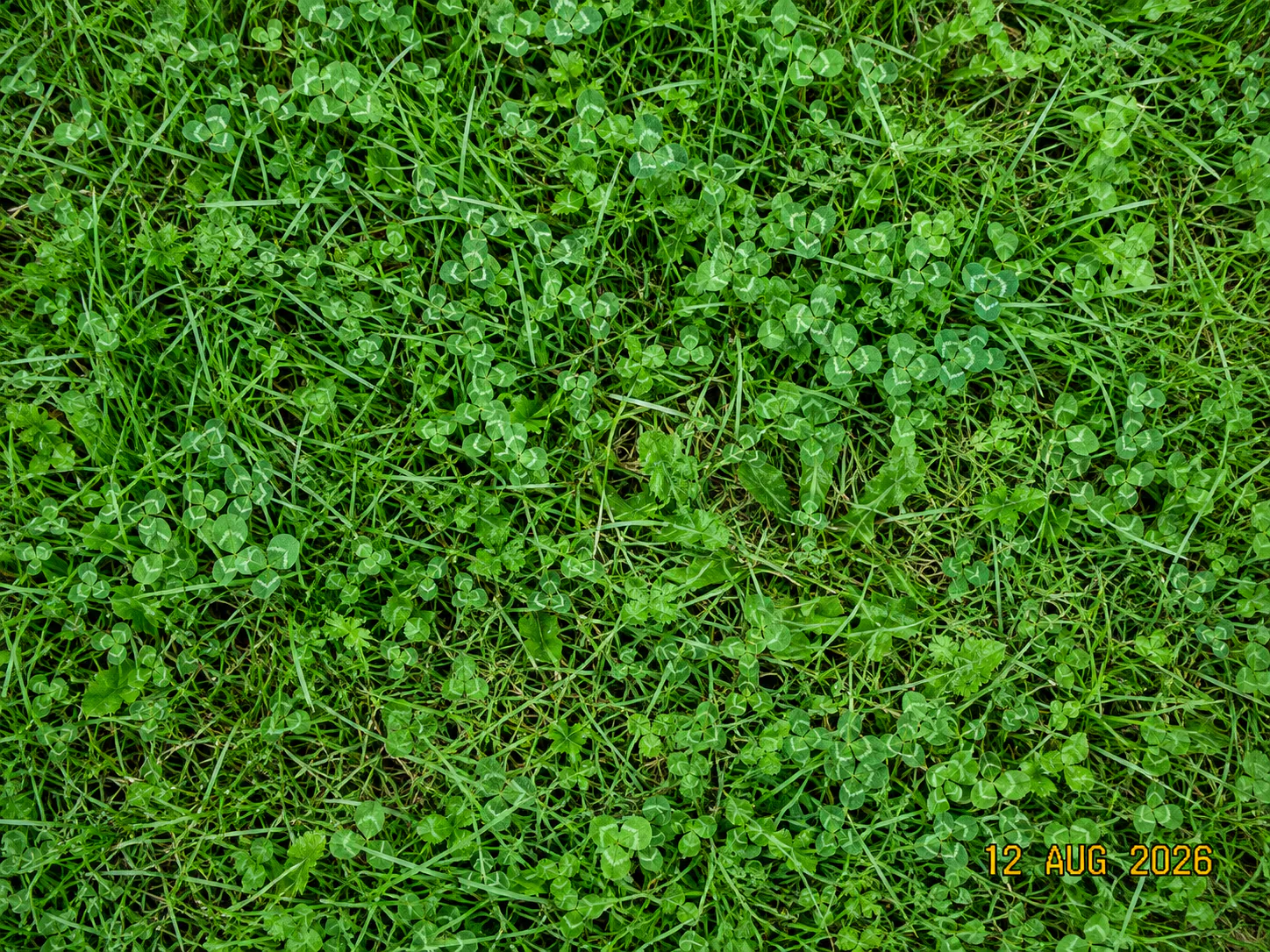
Grass is a high-frequency background. Look for waxy smooth patches, repeated leaf clusters, missing blades, or remnants of the yellow outline.

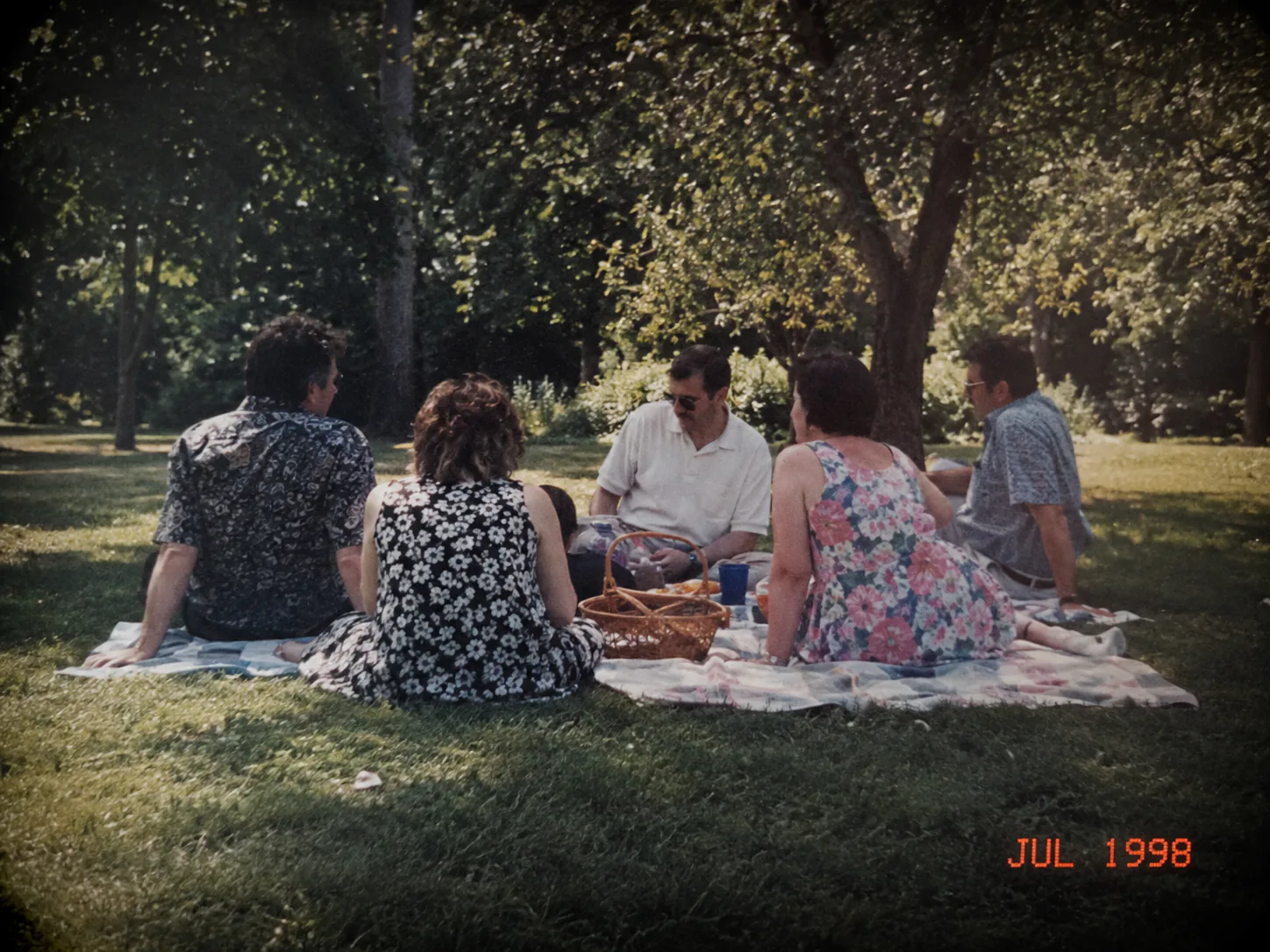
The vintage-style case is a visual derivative, not historical restoration. Preserve the dated source and inspect the edited corner for mismatched grain, color, grass texture, and vignetting.
All three are part of a 10-image synthetic display set. They contain no real user photos or third-party watermarks, and their outcomes apply only to these inputs—not every date-stamped photograph.
Date stamp difficulty depends on the background
| Stamp location | Difficulty | Main risk | Recommended approach | | --------------------------------- | ---------- | ------------------------------ | ------------------------------------------------ | | Open sky, wall, or flat surface | Lower | Slight color patch | One close selection | | Grass, sand, water, or pavement | Medium | Smeared or repeated texture | Split long stamps into smaller groups | | Image border or frame line | Medium | Broken straight edge | Repair digits and border sections separately | | Clothing, hair, or a product edge | High | Changed shape or detail | Keep the contour outside the mask where possible | | Face, hand, unique object detail | Highest | Invented identity or structure | Prefer the source image or manual retouching |
A Reddit photography discussion about roughly 200 date-stamped images illustrates why one-click batch promises are risky: the same stamp position can cover easy grass in one photo and important detail in the next. A separate Photopea discussion likewise notes that removal depends heavily on what sits behind the date. These reports support a background-first workflow, not a guarantee that every corner can be cleaned equally well.
Why cropping is not always the answer
Cropping is lossless with respect to the remaining pixels, but it removes part of the photograph and changes its dimensions. It works when the date sits beyond all important content and the new aspect ratio is acceptable. It is a poor choice when the corner contains a person, product, landmark, or deliberate framing.
Local repair preserves the full canvas but introduces inferred pixels. Choose between the two by asking which loss matters more: missing composition or reconstructed detail. For archival photos, keep the dated original regardless of which presentation copy you make.
Common problems and fixes
- A faint date remains: expand the selection just enough to include glow, shadow, or anti-aliased edge pixels.
- The corner looks blurry: undo, reduce the mask, and process groups of digits separately.
- The border becomes crooked: split the repair where the stamp touches the border, then inspect alignment.
- Grain disappears: use the least-compressed source and avoid repairing the entire corner.
- The wrong capture date still appears in your photo library: that is probably EXIF metadata; use a metadata editor instead.
- Many photos need the same edit: sample easy, medium, and hard backgrounds before any batch workflow. Do not assume success on one image predicts success across the set.
Sources and research notes
This guide uses public community reports to identify failure modes, then separates those experiences from product claims. Relevant discussions include a photographer handling about 200 stamped images, a Photopea thread on background-dependent methods, and a camera owner asking about a date already burned into the image. These are individual experiences, not controlled performance data.
Frequently asked questions
Does removing a visible date change the EXIF capture date?
No. A visible stamp and EXIF metadata are separate. Pixel repair changes what appears in the picture, while metadata tools change information stored with the file. Check both if your goal is to correct an inaccurate date everywhere.
Can I remove the date from hundreds of photos automatically?
Automation is possible only when the workflow supports batch processing, but quality still varies with each background. Test a representative sample that includes faces, edges, textures, and low-quality files. RemoveTextPro should not be treated as a batch tool unless the product explicitly offers that capability.
Is it better to remove or preserve dates on old family photos?
Preserve the original dated file. If you want a cleaner display copy, create a separate edit and record the date elsewhere. The visible stamp may be useful context even when it is visually distracting.
Why is a date over grass harder than a date over the sky?
Grass contains many small, irregular edges and color changes. A repair must create plausible local texture without obvious repetition. Open sky is usually smoother, so a small fill has fewer structures to match.