

How to Remove a Text Overlay From a Photo Without Cropping
Remove captions, quotes, and burned-in text overlays while keeping the full frame, then check shadows, outlines, and hidden detail.
On this page
- Is the text editable or burned into the pixels?
- Remove a caption in five steps
- Three synthetic overlay cases
- Burned-in subtitle over a complex scene
- Camera UI text over a low-light scene
- Social handle near hair and a subject edge
- Caption, quote, subtitle, sticker, or UI overlay?
- Why people look for an alternative to cropping
- What to do when the overlay crosses important detail
- Full-frame quality checklist
- Sources and research notes
- Frequently asked questions
- Can I remove subtitles from a screenshot without losing part of the image?
- Can I remove subtitles from an entire video with this method?
- Why is there still a dark border after the words are gone?
- Is removing a caption the same as removing a sticker?
- Will the result keep the original image quality?
To remove a text overlay without cropping, first check whether the caption can be disabled or exported from its original app. If the words are burned into a flattened image, duplicate the file, select the letters plus their outline and shadow, and repair one line or background surface at a time. Review both the masked area and the rest of the image before exporting.
Use this workflow only for images you own or are authorized to change. It is not intended to conceal another creator’s ownership or source information.
Is the text editable or burned into the pixels?
Text in a design file, social app draft, video player, or editor timeline may still be an editable layer. Text in a downloaded JPG, screenshot, meme, or exported video frame is usually burned into the pixels. Removing an editable layer preserves the original background exactly; repairing a flattened image requires reconstructing whatever the text hides.
| Situation | Best first action | | ------------------------------------------------ | ------------------------------------------------ | | Original Canva, Photoshop, or design file exists | Hide or delete the text layer and export again | | Subtitle can be turned off in the player | Disable it and capture or export a clean frame | | Social post draft is still available | Return to the draft and save without the caption | | Only a JPG, PNG, or screenshot remains | Use a local text-removal repair | | Text identifies an owner, source, or license | Do not remove it without authorization |
A clean source always contains more real detail than an AI reconstruction.
Remove a caption in five steps
- Keep the full original. Duplicate the highest-resolution file before editing.
- Identify every part of the overlay. Captions may include a solid fill, outline, drop shadow, translucent bar, emoji, or decorative trail.
- Select the smallest complete region. Process separate lines and different background surfaces independently.
- Inspect the hidden scene. Check faces, hands, product edges, and repeated textures that were under the words.
- Compare the full frame. Confirm that the editor did not crop, resize, recompress, or alter details outside the mask.
The most common incomplete edit removes the white letter fill but leaves a black outline or soft shadow. Zoom in before processing so the selection includes the entire visible text effect.
Three synthetic overlay cases
These examples were prepared with an AI-assisted image-editing workflow for this guide. They are not results from a tested production RemoveTextPro build and should not be read as a product benchmark. The inputs are synthetic, the canvas stays at 1448 × 1086, and each result is shown without later hand retouching.
Burned-in subtitle over a complex scene
The subtitle below spans foliage, ground texture, stones, and firelight. Cropping would remove part of the composition, while one oversized mask would ask the editor to reconstruct several unrelated surfaces at once.
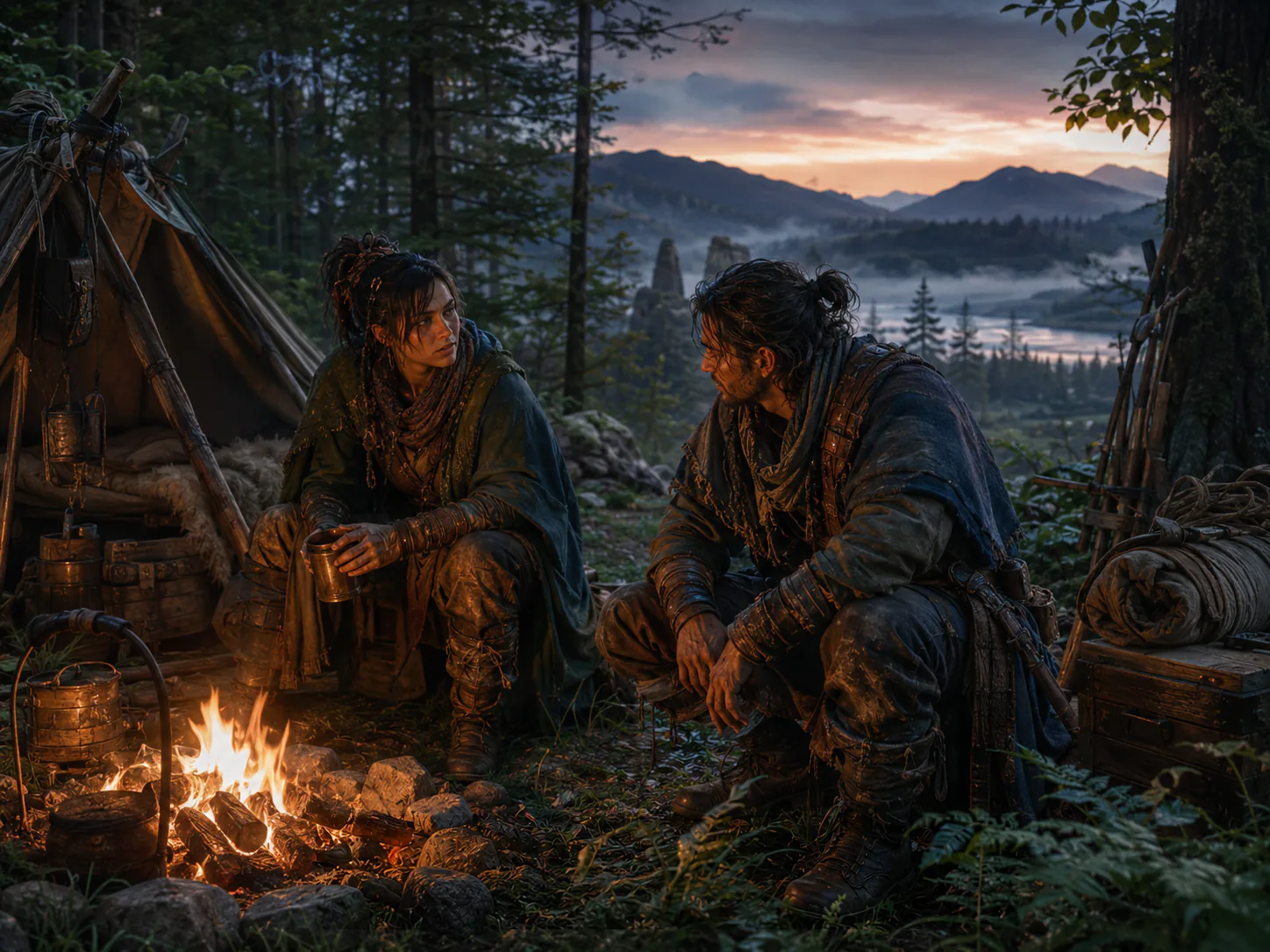
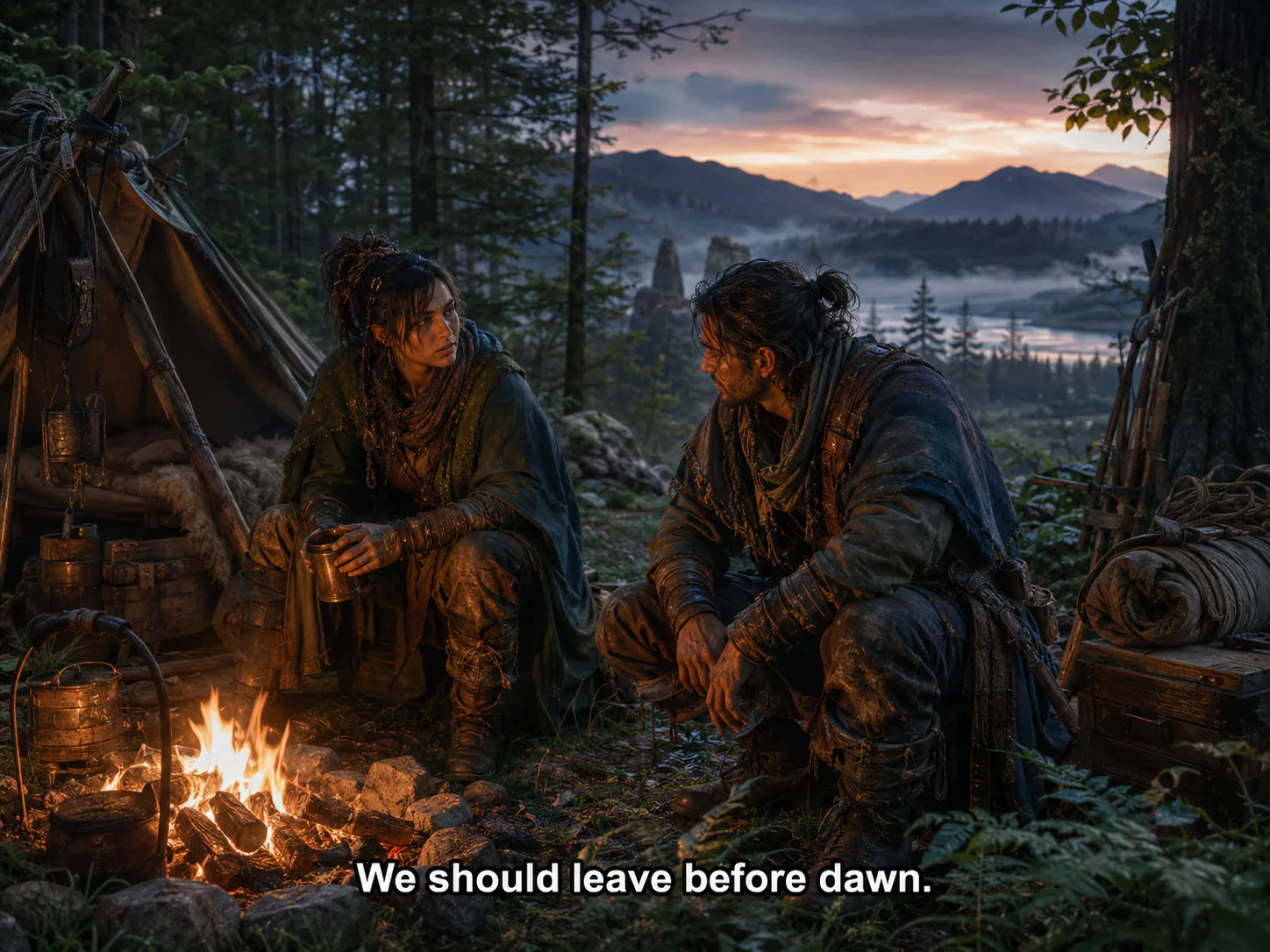
Look beyond the missing letters. Check the repaired grass, stone edges, plant shapes, and warm light at 100%. This is a still-image example; it does not imply video or batch support.
Camera UI text over a low-light scene
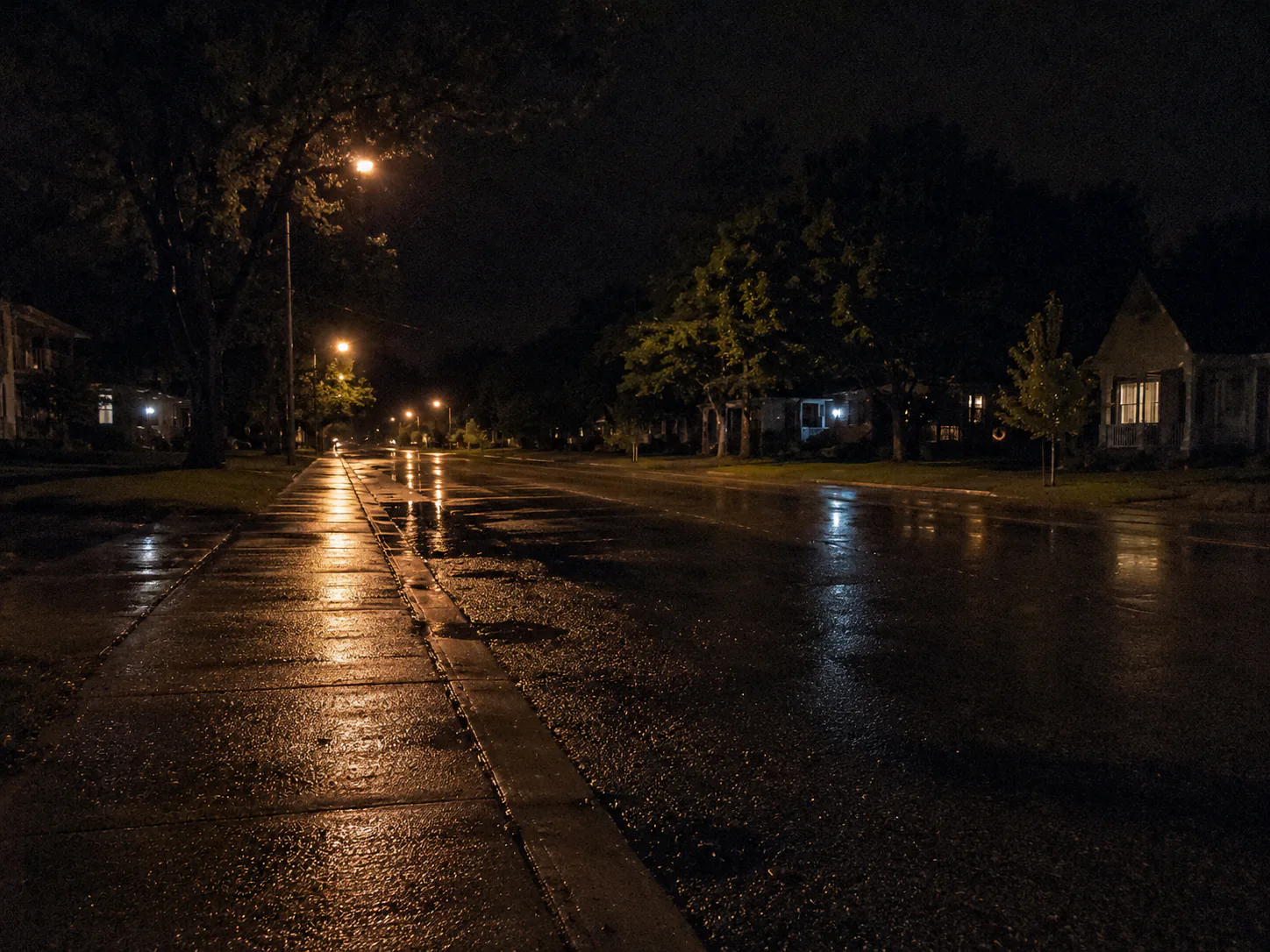
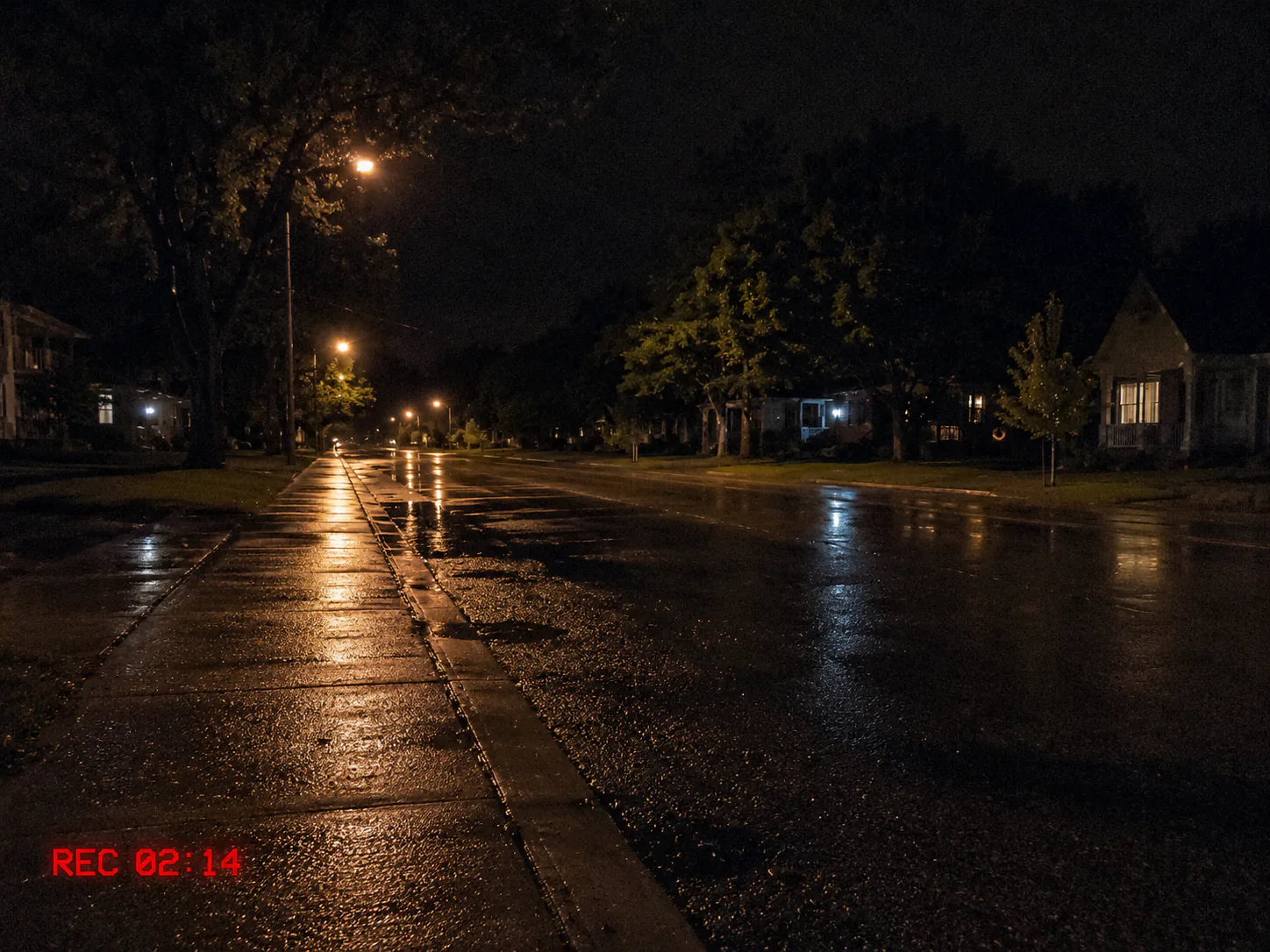
Low-light noise makes smooth patches easy to notice. Inspect whether the repaired pavement keeps the same grain and whether any red glow remains. Treat this as removal from a still image, not from a recording.
Social handle near hair and a subject edge

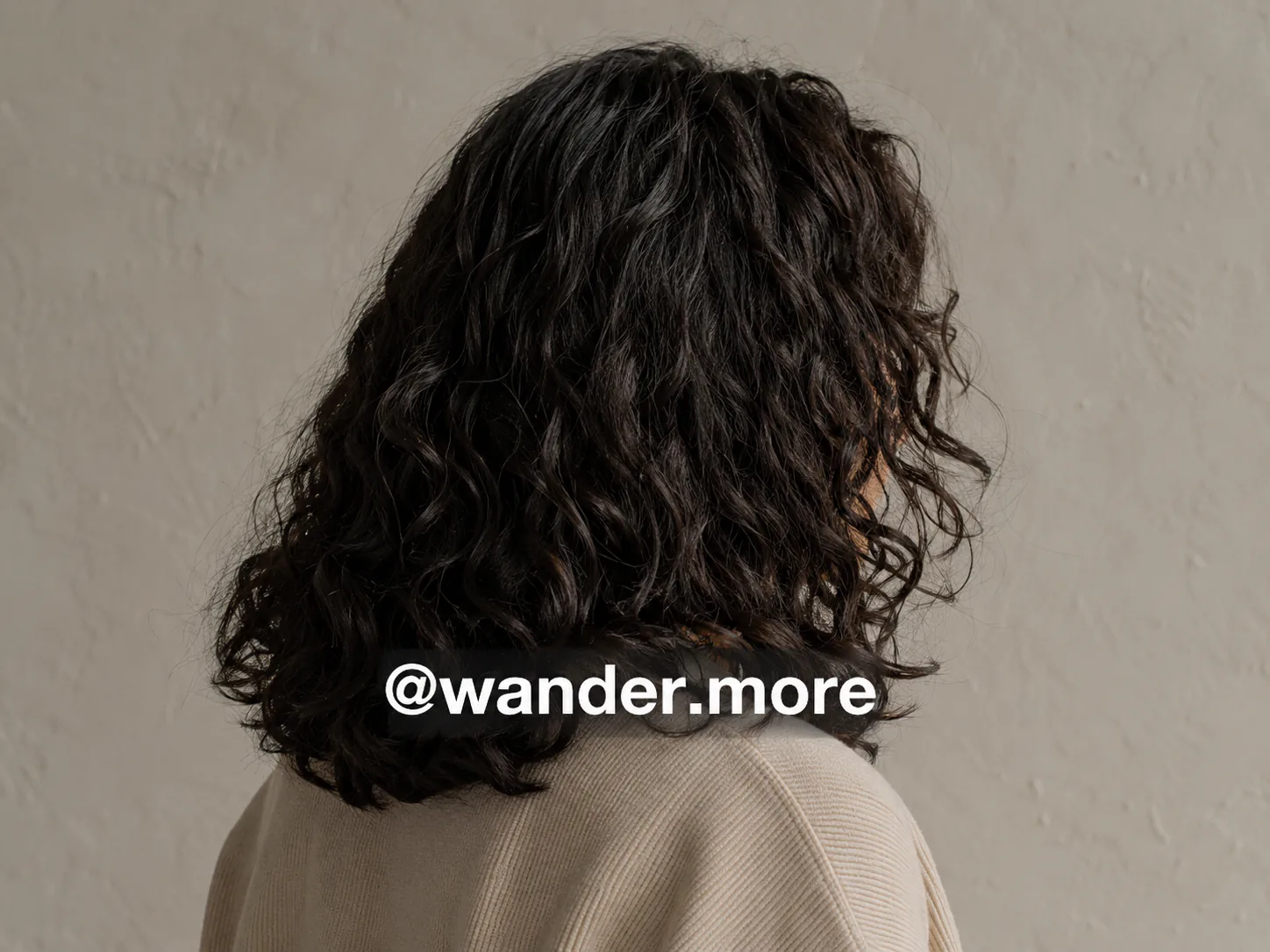
The handle and account are fictional. This case tests a difficult boundary rather than encouraging removal of real ownership information. Hair strands, the shoulder contour, and fabric texture all require close review; if identity or attribution matters, find the clean source instead.
Caption, quote, subtitle, sticker, or UI overlay?
These elements look similar but create different masks:
| Overlay type | What must be selected | Typical failure | | --------------------------------- | --------------------------------------------- | ------------------------------- | | Plain typed caption | Letters, outline, and shadow | Halo around the characters | | Subtitle over video or screenshot | Every line, including translucent box | Lost faces or foreground detail | | Quote graphic | Text plus decorative rules or quotation marks | Small marks left behind | | Sticker or emoji | Full irregular shape and shadow | Sharp sticker edge remains | | Phone or game UI label | Text plus icon or panel only when authorized | Interface fragments remain |
Do not use a single large rectangle merely because the overlay occupies the same horizontal band. The image underneath may change from a face to clothing to open background across that band.
Why people look for an alternative to cropping
Cropping subtitles from a screenshot can remove a meaningful part of the scene or produce an awkward aspect ratio. A Reddit user asking about game screenshots described exactly that trade-off: cropping the subtitles meant losing a large portion of the image. In another public request, an initial text-overlay cleanup left a visible feather-like trail, showing why completeness matters as much as the first pass.
These are individual reports, not benchmarks. They identify two useful checks for any workflow: preserve the full composition, and inspect for secondary overlay elements after the main letters disappear.
What to do when the overlay crosses important detail
- Across a face or hand: look for a clean source first. If none exists, use small masks and treat the result as a draft.
- Across a straight object edge: split the text at the edge and repair each side independently.
- Across hair, grass, food, or fabric: work a few characters at a time and check texture continuity.
- Over a translucent caption bar: include the full bar only if the entire bar must disappear; otherwise a leftover tint will remain.
- Over line art or a game HUD: inspect thin lines and repeated icons for missing or invented parts.
Text removal cannot reveal the original hidden pixels. When the covered information is unique or important, manual retouching or returning to the source file is more reliable than repeatedly increasing the AI mask.
Full-frame quality checklist
Before downloading, confirm all of the following:
- no letter fill, outline, glow, or shadow remains;
- no sticker edge, translucent strip, or decorative mark was missed;
- faces, hands, object contours, and straight lines keep their shape;
- repeated texture does not turn into a smooth patch or cloned tile;
- the output dimensions and aspect ratio match the original;
- details outside the selection did not change;
- the result is saved as a new file, not over the only original.
Sources and research notes
The workflow is informed by public discussions about cropping subtitles from screenshots, residual parts of a phone-wallpaper overlay, and imprecise AI eraser selection. Community reports help define user problems but do not prove a product’s accuracy. The before-and-after examples on this page are content demonstrations, not production RemoveTextPro results or universal promises.
Frequently asked questions
Can I remove subtitles from a screenshot without losing part of the image?
Yes, a local repair preserves the canvas dimensions, unlike cropping. The quality depends on what the subtitle covers. Open backgrounds are easier; faces, hands, and detailed foreground objects may need a source frame without subtitles or manual retouching.
Can I remove subtitles from an entire video with this method?
This guide and RemoveTextPro focus on still images. Video requires consistent masks and reconstruction across many frames; cleaning one screenshot does not imply video or batch support. If the subtitle is a selectable track, disable it in the player or editor instead.
Why is there still a dark border after the words are gone?
The selection likely covered the letter fill but missed its outline, shadow, or anti-aliased edge. Undo the result and make a slightly more complete mask around the visible text effect, without including unnecessary background.
Is removing a caption the same as removing a sticker?
Not exactly. Captions often have narrow letter shapes, while stickers include an irregular body, outline, and shadow. A sticker usually needs a shape-based selection and may hide more of the original image.
Will the result keep the original image quality?
The canvas can keep its dimensions, but repaired pixels are still reconstructed, and export settings can add compression. Compare the output at 100%, check the file dimensions, and avoid repeated JPEG saves. Do not interpret “same resolution” as proof that every detail is unchanged.